
Store Configuration
Overview
The MasterFFL Checkout extension provides several configuration sections that allow administrators to customize checkout behavior.
To access these settings:
-
Log in to Magento Admin.
-
Navigate to:
Stores → Configuration → MasterFFL Checkout
-
Select the desired configuration section from the left navigation menu.
-
Click Save Config after making any changes.
Environment Setting
The Environment Setting section controls the application environment and core module behavior.
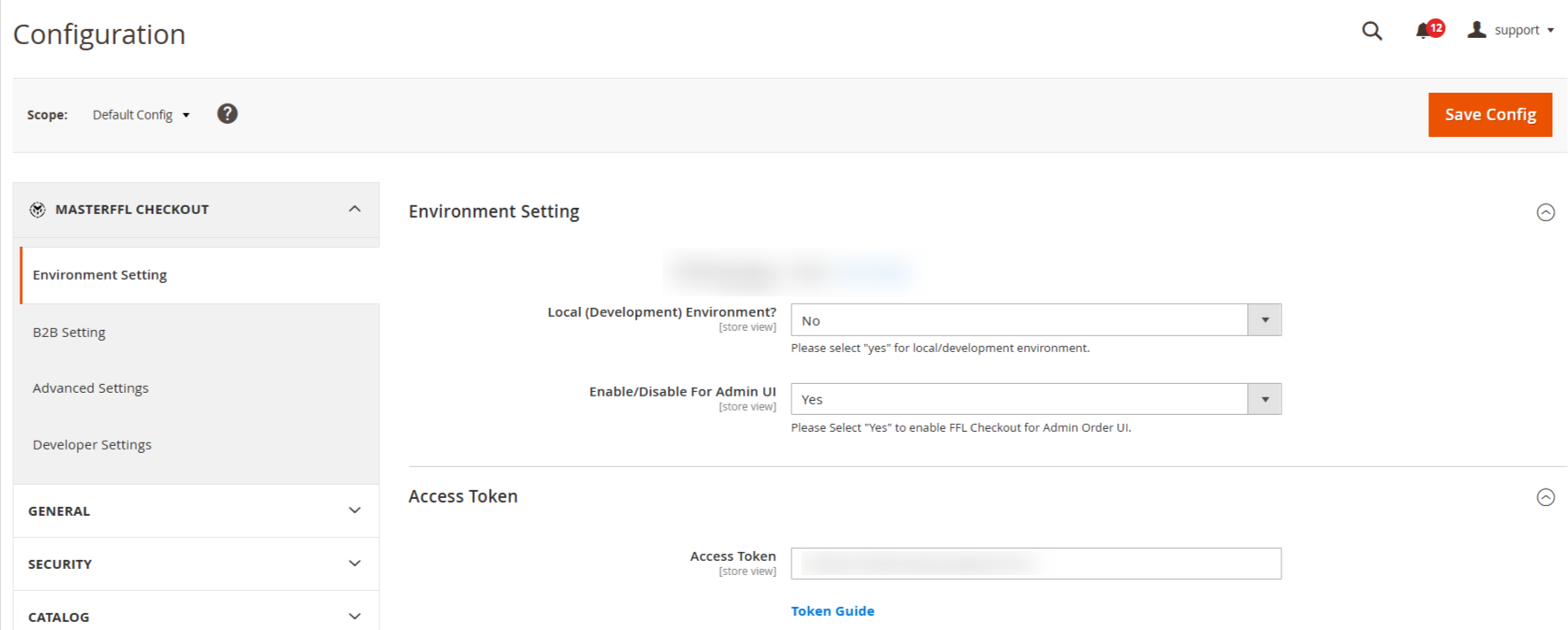
-
Module Version - It shows the current module version and the user guide link.

-
Local (Development) Environment?
Value Description Yes Development or testing environment No ( Default ) Production environment -
Enable/Disable For Admin UI - Controls whether MasterFFL functionality is available when creating orders in Magento Admin.
Value Description Yes Enable MasterFFL checkout functionality in Admin Orders No Disable MasterFFL checkout functionality in Admin Orders -
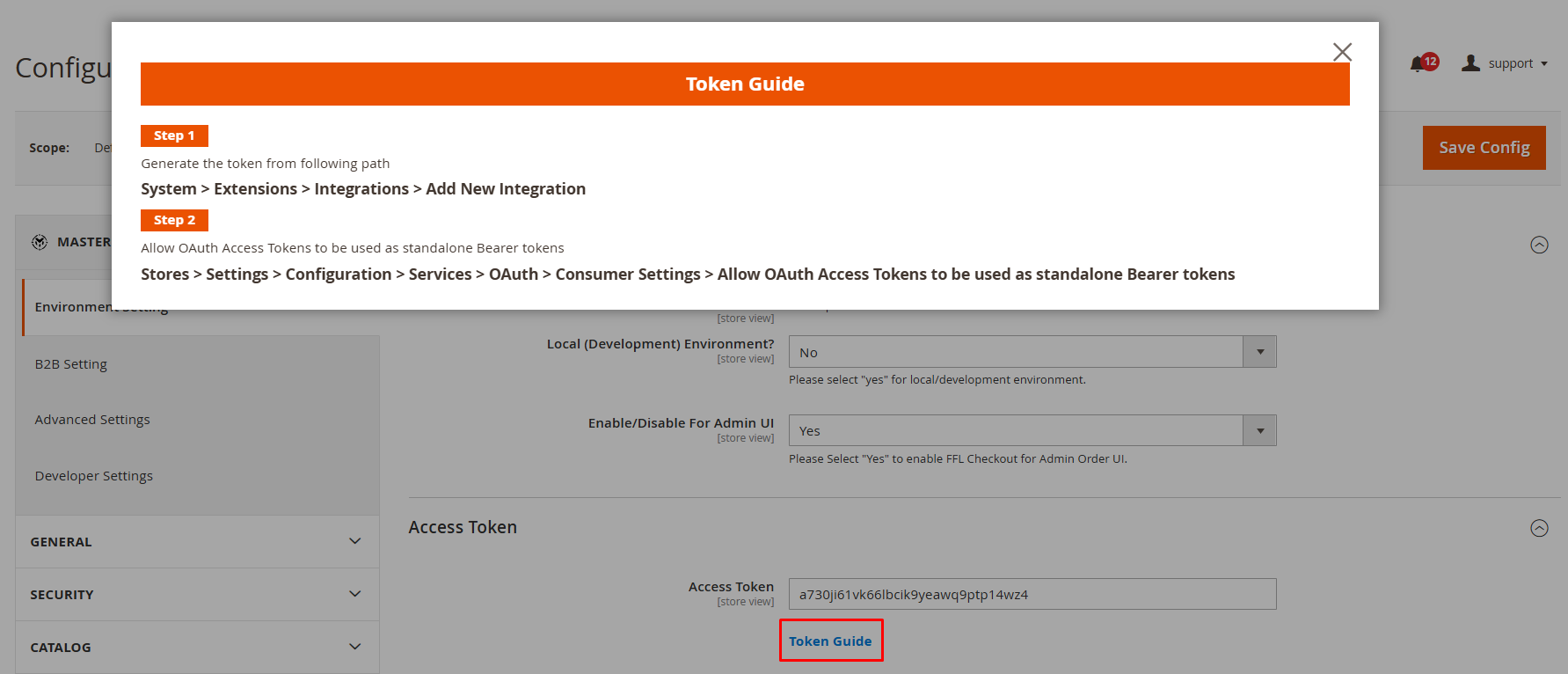
Access Token - The Access Token authenticates communication between Magento and MasterFFL services.
-
Generate an access token from System → Extensions → Integrations → Add New Integration.
-
Enable Allow OAuth Access Tokens to be used as standalone Bearer tokens under Stores → Settings → Configuration → Services → OAuth → Consumer Settings.
-
I AM AN FFL / B2B Flow
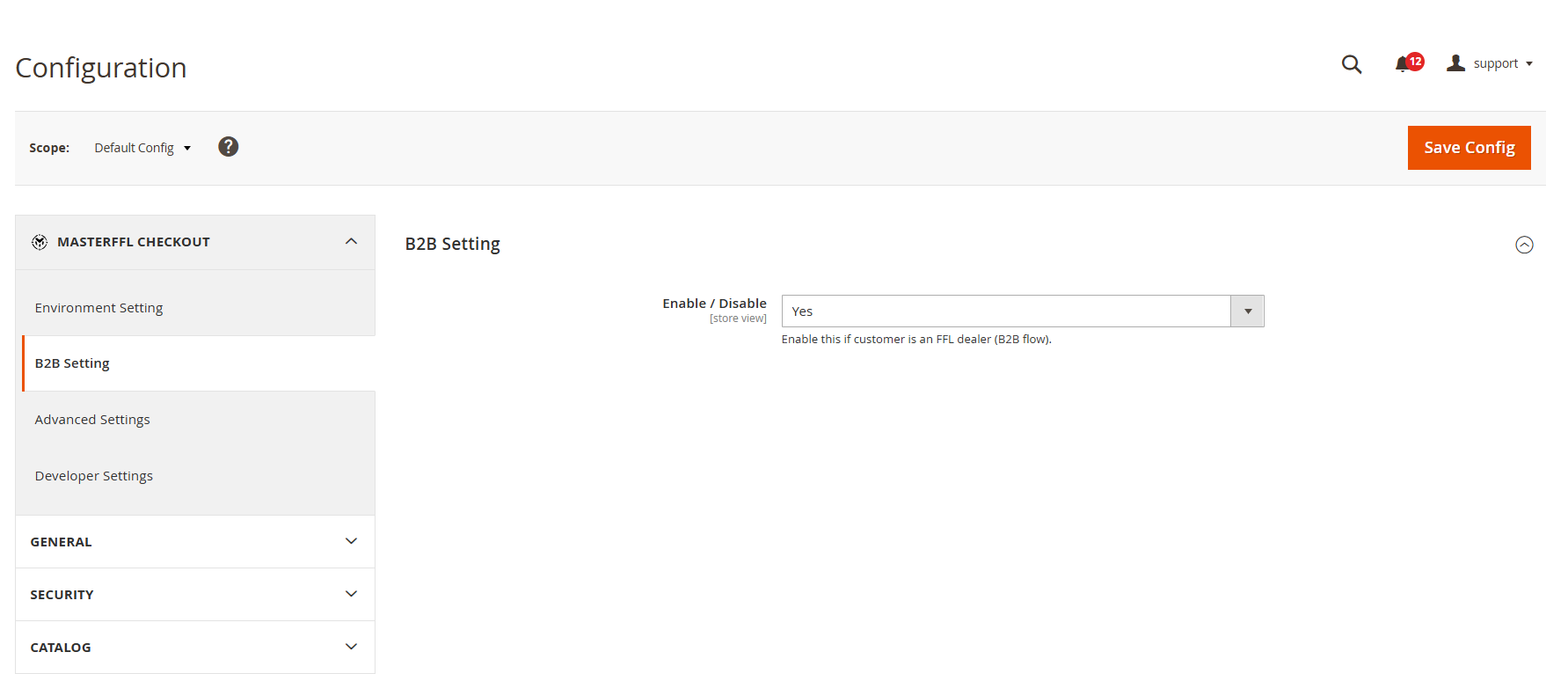
The I AM AN FFL / B2B Flow enables licensed FFL dealers to purchase products directly through the storefront using their own FFL license information. This feature must be enabled in Advanced Configuration before the "I AM AN FFL" option will appear during checkout.
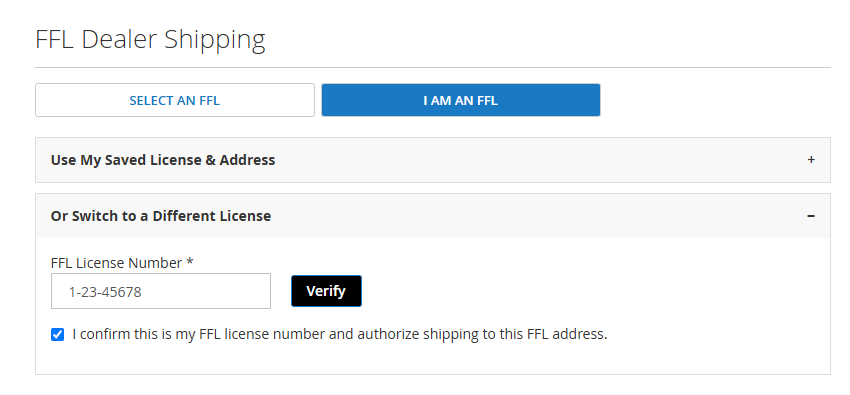
When enabled, dealers can verify their FFL license and ship orders directly to an address registered under that license, eliminating the need to select a receiving FFL dealer.
B2B Flow Checkout Experience
Advanced Settings
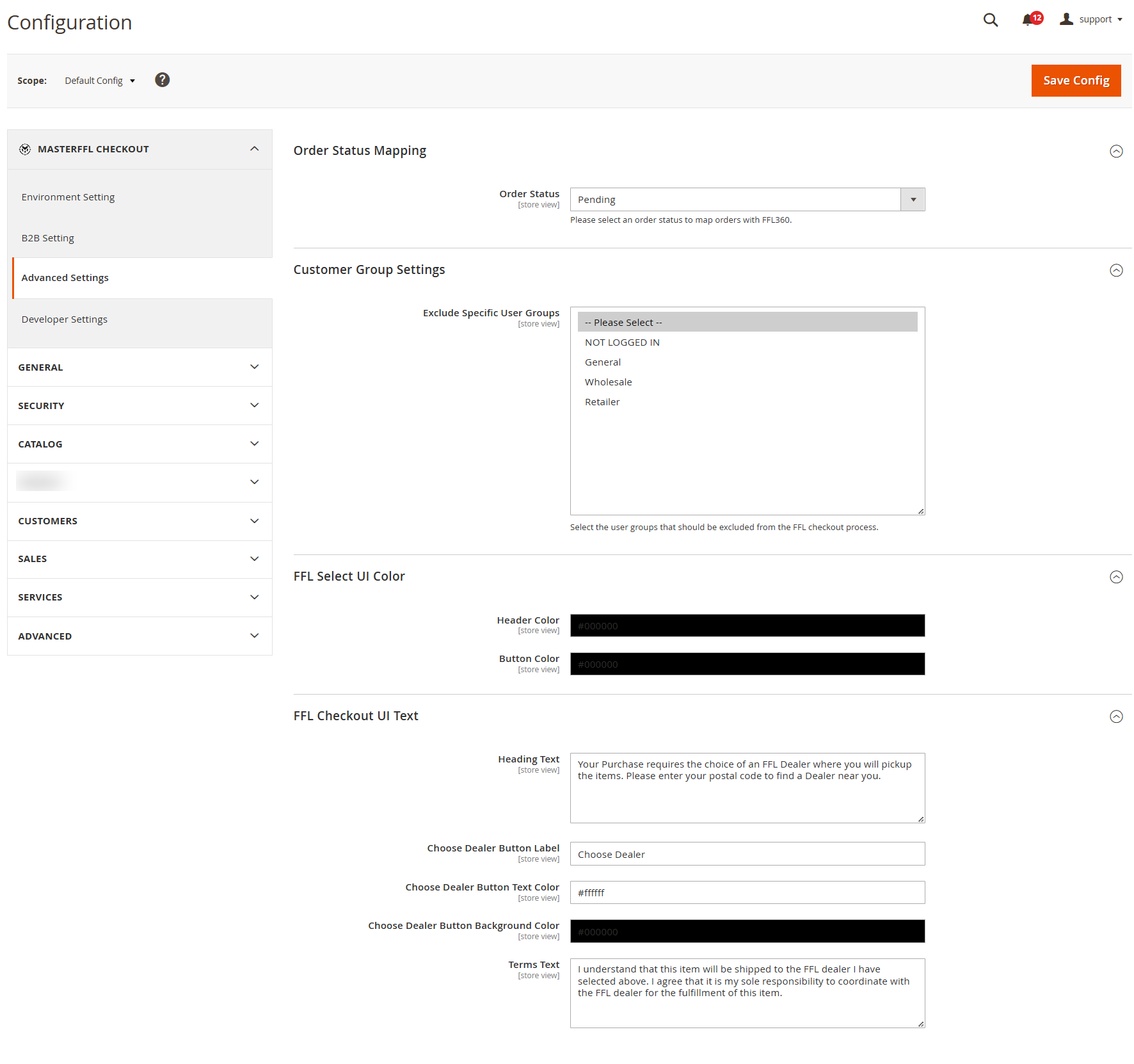
Advanced Settings provide customization options for order mapping, customer groups, and checkout UI appearance.
-
Order Status Mapping -

The Order Status Mapping setting determines when an order is sent from BigCommerce to FFL360 to begin the firearm transfer process.Administrators can select a BigCommerce order status that acts as the trigger for synchronization. When an order reaches the configured status, Master FFL automatically sends the order information to FFL360 and initiates the transfer workflow.
Important Notes- Orders are not transmitted to FFL360 until they reach the configured status.
- Only one order status can be selected as the synchronization trigger.
- Status updates made after the initial synchronization will continue to be sent to FFL360.
- Selecting the appropriate status helps ensure transfer records are created at the correct stage of your fulfillment workflow.
-
Customer Group Settings -> Exclude Specific User Groups -
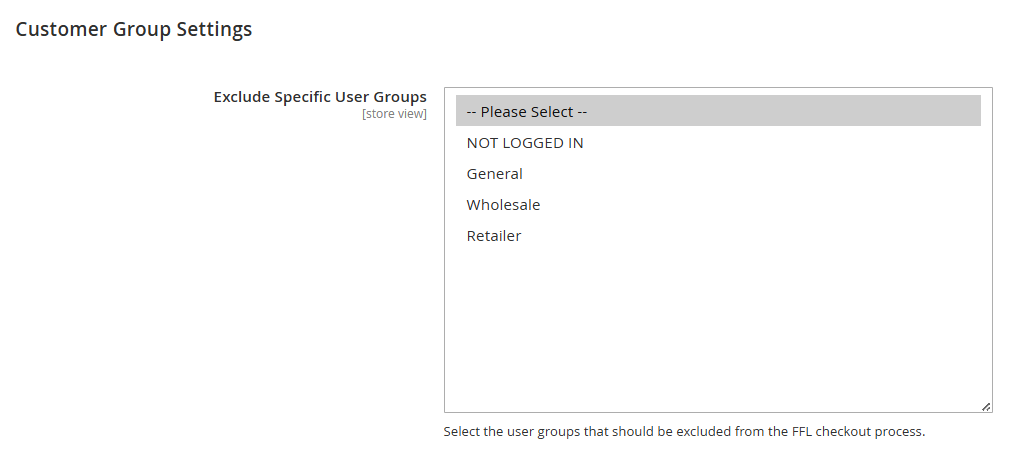
Allows specific customer groups to bypass the MasterFFL checkout workflow.
Select one or more Magento customer groups that should not participate in the FFL checkout process. -
FFL Select UI Color
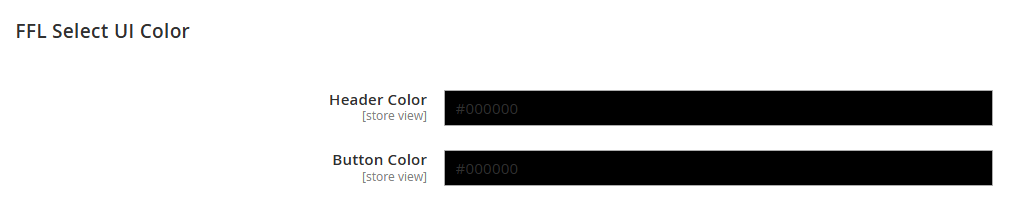
The FFL Select UI Color section controls the visual styling of the dealer selection experience.
Header Color determines the color used for headings and prominent interface elements within the FFL selection window. Button Color determines the default color used for action buttons displayed throughout the FFL checkout experience.
These settings allow merchants to create a more consistent look and feel between the Master FFL interface and their storefront theme.
-
FFL Checkout UI Text
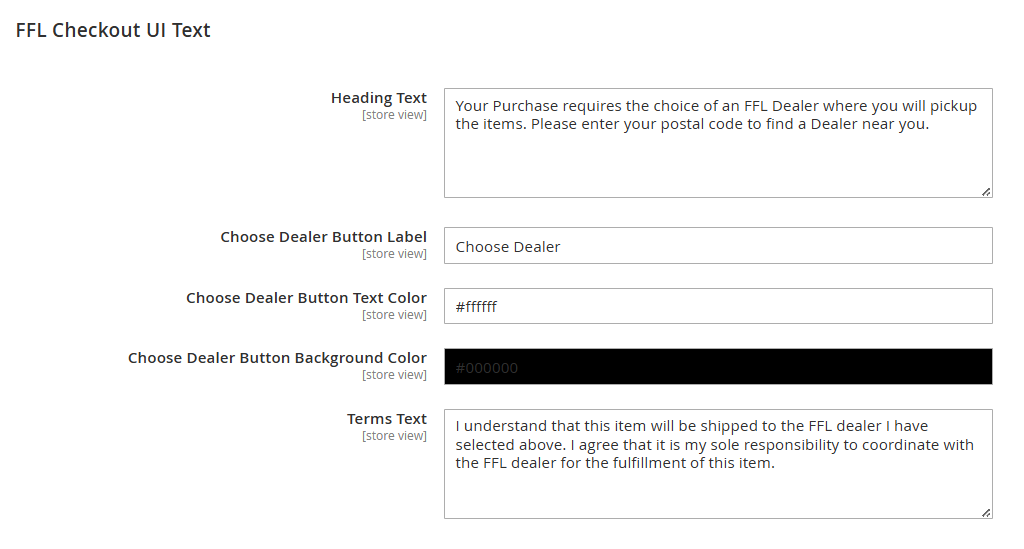
The FFL Checkout UI Text section allows merchants to customize the messaging displayed to customers during checkout.
- Heading Text displays instructional content above the dealer selection interface and can be used to explain why an FFL dealer must be selected.
- Choose Dealer Button Label controls the text shown on the button that launches the dealer selection tool.
- Choose Dealer Button Text Color controls the color of the text displayed on the dealer selection button.
- Choose Dealer Button Background Color controls the background color of the dealer selection button.
- Terms Text controls the acknowledgment language displayed to customers before completing checkout. This text is typically used to communicate transfer requirements and confirm the customer's responsibility for coordinating with the selected FFL dealer.
- Saving Changes After making any changes to colors or text settings, click Save to apply the updates. All future customers will see the updated branding and messaging during the FFL selection process at checkout.
Developer Settings
Developer Settings provide maintenance and cleanup options.
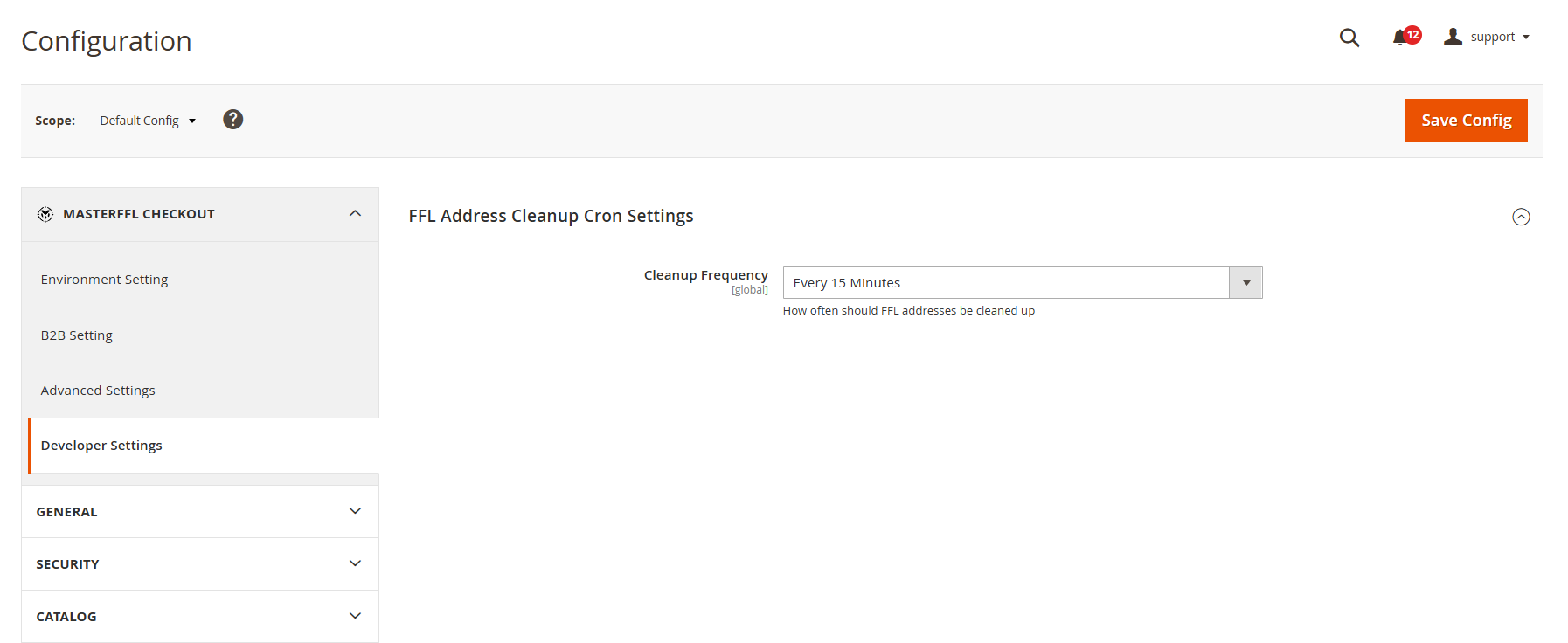
FFL Address Cleanup Cron Settings
Controls how frequently temporary FFL address records are cleaned from the system.
Recommendation
For most stores:
Every 15 Minutes is recommended.
This ensures:
- Old temporary FFL addresses are removed
- Database remains optimized
- Checkout data stays clean
Updated 3 months ago