
Settings
Overview
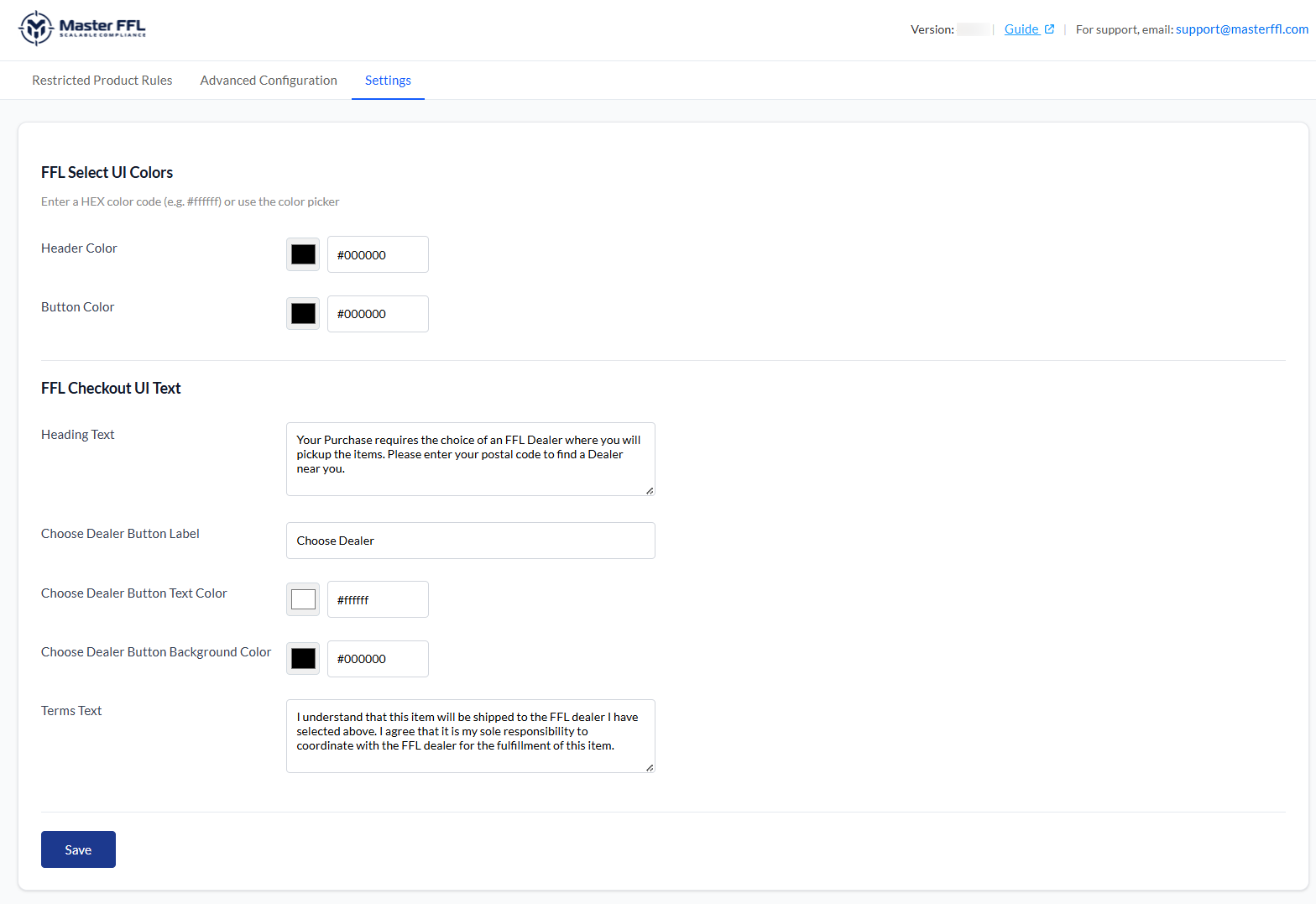
The Settings tab allows administrators to customize the appearance and messaging of the Master FFL checkout experience. These settings can be used to align the FFL selection workflow with your storefront branding and provide customers with custom instructions throughout the checkout process.
FFL Select UI Color
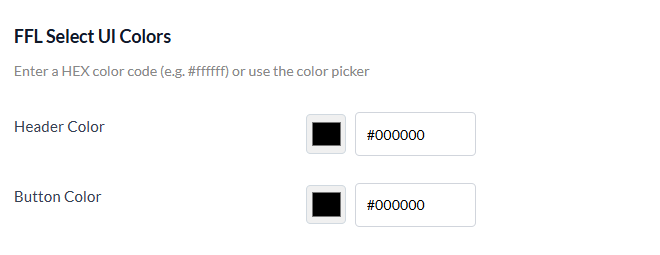
The FFL Select UI Color section controls the visual styling of the dealer selection experience.
Header Color determines the color used for headings and prominent interface elements within the FFL selection window. Button Color determines the default color used for action buttons displayed throughout the FFL checkout experience.
These settings allow merchants to create a more consistent look and feel between the Master FFL interface and their storefront theme.
FFL Checkout UI Text
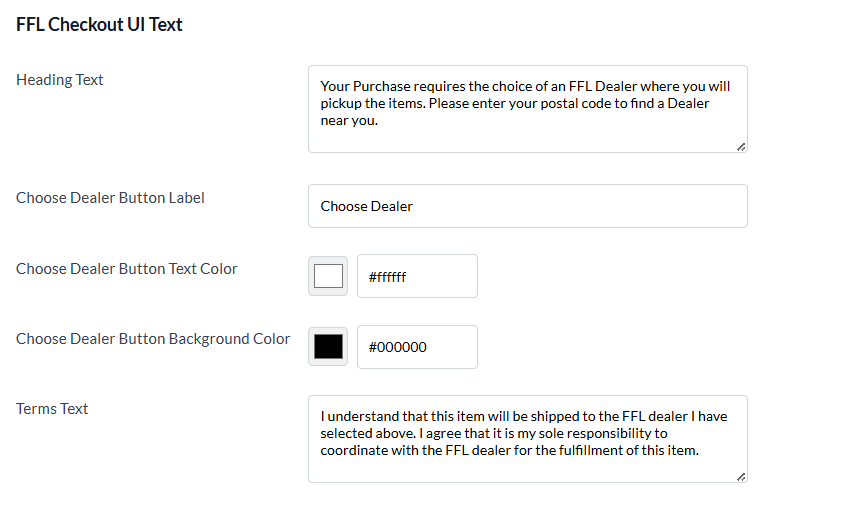
The FFL Checkout UI Text section allows merchants to customize the messaging displayed to customers during checkout.
- Heading Text displays instructional content above the dealer selection interface and can be used to explain why an FFL dealer must be selected.
- Choose Dealer Button Label controls the text shown on the button that launches the dealer selection tool.
- Choose Dealer Button Text Color controls the color of the text displayed on the dealer selection button.
- Choose Dealer Button Background Color controls the background color of the dealer selection button.
- Terms Text controls the acknowledgment language displayed to customers before completing checkout. This text is typically used to communicate transfer requirements and confirm the customer's responsibility for coordinating with the selected FFL dealer.
- Saving Changes After making any changes to colors or text settings, click Save to apply the updates. All future customers will see the updated branding and messaging during the FFL selection process at checkout.
Updated 3 months ago