
Magento - v3
Installation
-
Download the Latest Version
Download the latest version of theMasterFFL_Checkoutmodule. -
Upload to Magento
Upload the module folder to your Magento installation under:app/code/MasterFFL/CheckoutIf the
MasterFFLfolder does not exist, create it manually. -
Run Setup Commands
SSH into your Magento root directory and run:php bin/magento setup:upgrade php bin/magento setup:di:compile php bin/magento cache:flush -
Enable the Module (if not auto-enabled)
To ensure the module is enabled:php bin/magento module:enable MasterFFL_Checkout -
Configure the Module
Log in to your Magento Admin panel and navigate to:
Stores → Configuration → MasterFFL Checkout
Admin Configuration
To configure the Magento 2 Checkout extension, follow these steps:
- Log into the Magento 2 Admin Panel.
- Navigate to:
Stores > Configuration > MasterFFL Checkout > Environment Setting - Configure the following settings:
Environment Setting
Environment Setting

- Local (Development) Environment?
- Set to Yes only if you want to test on a local/development/staging environment.
- The default is No (for the production environment).
- Enable/Disable For Admin UI
- Set to Yes/No for Enable/Disable FFL Checkout on Admin order UI
- The default is Yes (Enabled FFL Checkout for Admin order UI).
Access Token

Access Token Setup
-
Generate Token
- Go to:
System > Extensions > Integrations > Add New Integration - Create and generate a token for the integration.
- Go to:
-
Allow Standalone Bearer Tokens
- Navigate to:
Stores > Settings > Configuration > Services > OAuth > Consumer Settings - Set:
Allow OAuth Access Tokens to be used as standalone Bearer tokens → Yes
- Navigate to:
- Navigate to:
Stores > Configuration > MasterFFL Checkout > Product Mapping
B2B Setting
Enable/Disable - I am an FFL / B2B Order flow
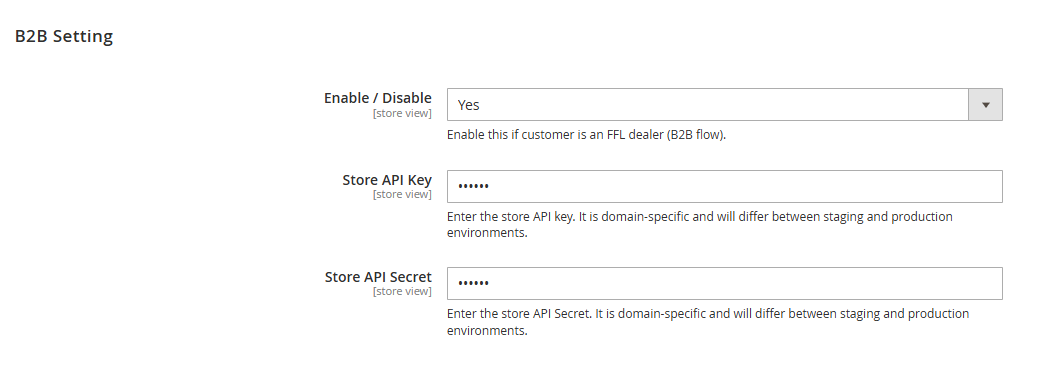
- You can enable or disable the B2B flow from this setting. When enabled, B2B users can enter their FFL license number directly on the checkout UI.
- In this flow, users are not required to enter a ZIP code or search for an FFL dealer. Instead, they simply enter their FFL license number and proceed to place the order using their preferred or mailing address.
- To enable the B2B feature, you must configure the Store API Key and Store API Secret. These credentials can be obtained from the MasterFFL team.
Product Mapping
FFL Mapping

- Custom Attribute Name
Enter the FFL attribute name used to determine if the product is an FFL product. - Custom Attribute Value
Define the value that marks a product as Yes / No for FFL.
FFL Firearm Type Mapping

- Configure the attribute that maps the type of firearm (e.g., Handgun, Rifle, etc.)
- This attribute ensures correct handling and categorization of firearm products during checkout.
FFL Firearm Type Values Mapping
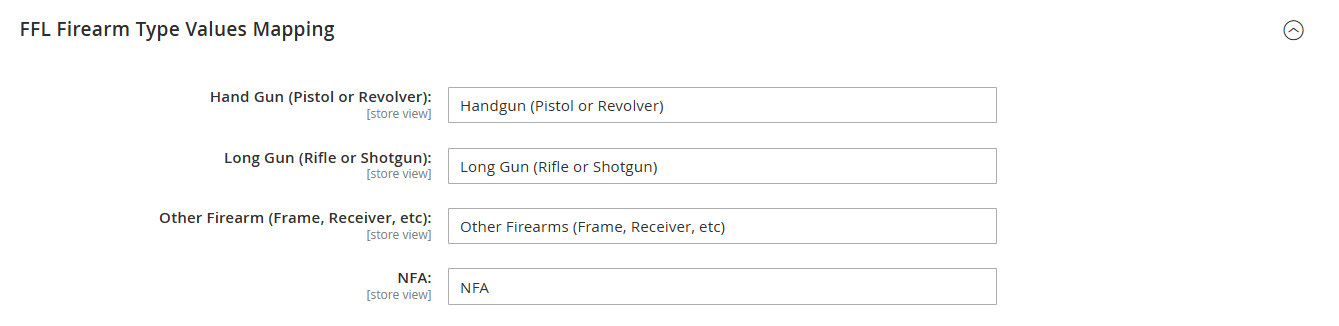
- Hand Gun (Pistol or Revolver) : Input field for mapping handgun values.
- Long Gun (Rifle or Shotgun) : Input field for mapping long gun values.
- Other Firearm (Frame, Receiver, etc.) : Input field for mapping other firearm values.
- NFA : Input field for mapping NFA values.
- Navigate to:
Stores > Configuration > MasterFFL Checkout > Category Mapping
Category Mapping
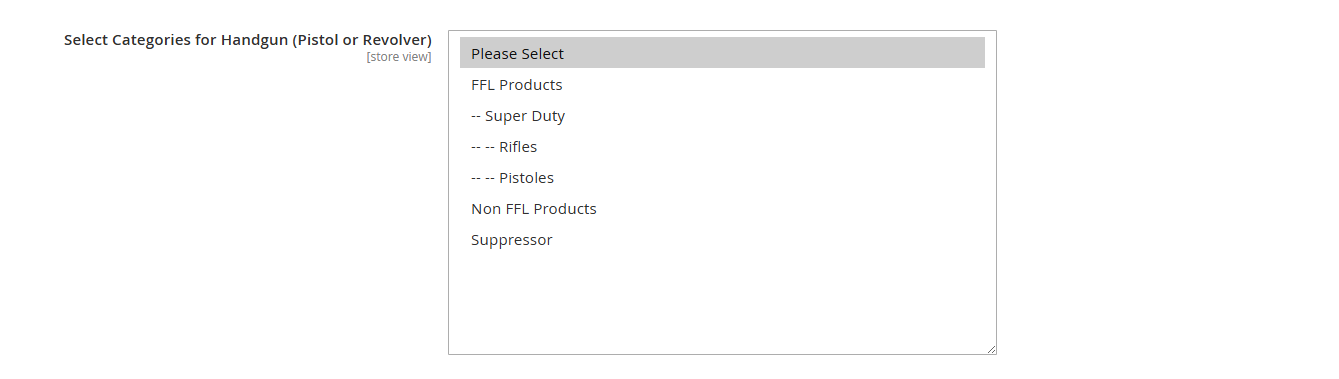
- Select Categories for Handgun (Pistol or Revolver)
This configuration allows you to map specific categories to the FFL category: Handgun (Pistol or Revolver).
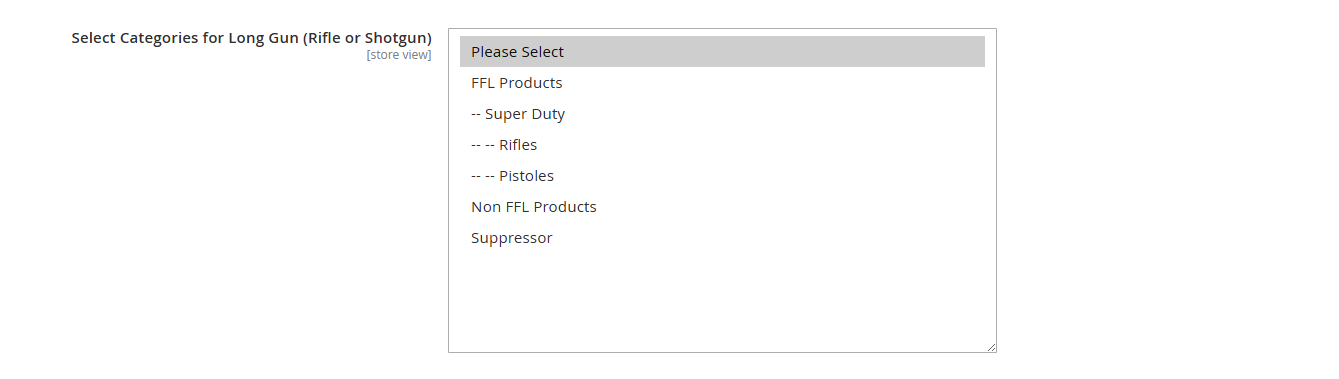
- Select Categories for Long Gun (Rifle or Shotgun)
This configuration allows you to map specific categories to the FFL category: Long Gun (Rifle or Shotgun).
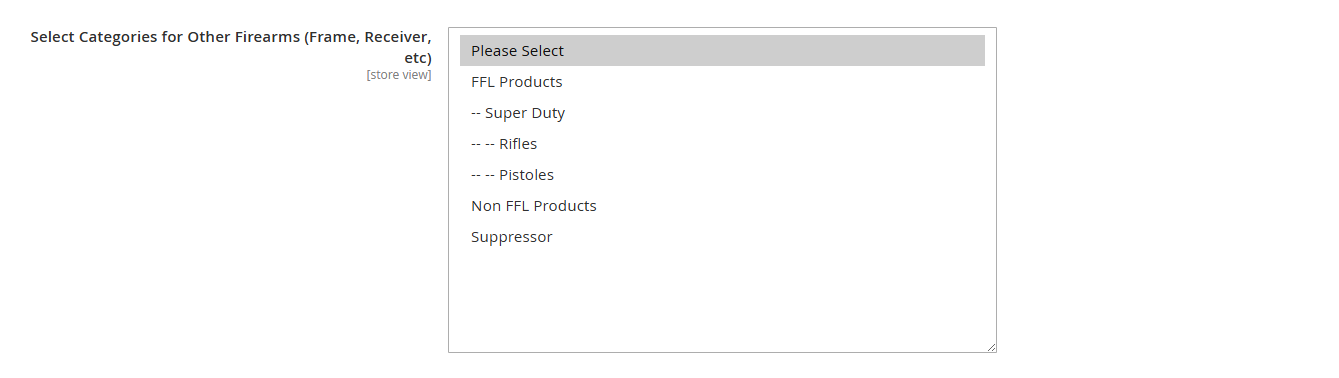
- Select Categories for Other Firearms (Frame, Receiver, etc.)
This configuration allows you to map specific categories to the FFL category: Other Firearms (Frame, Receiver, etc.).
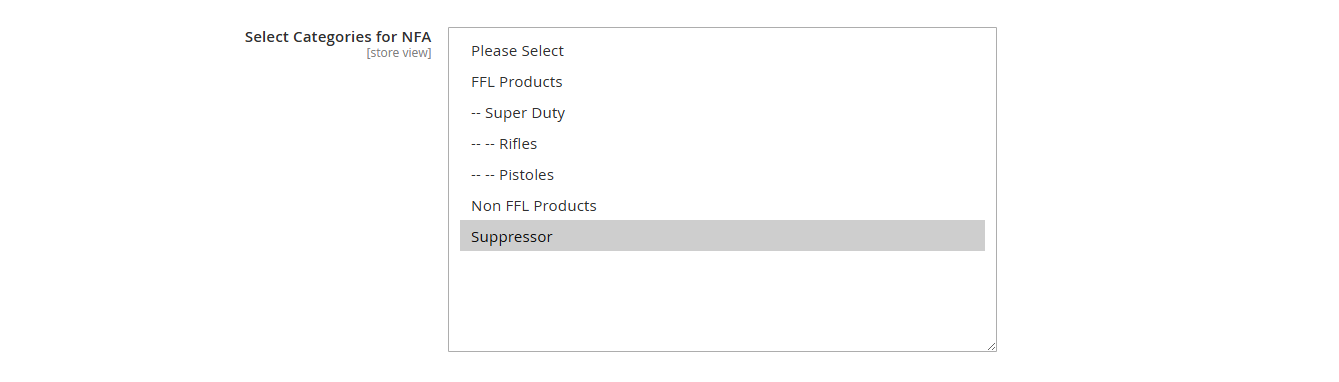
- Select Categories for NFA
This configuration allows you to map specific categories to the FFL category: NFA.
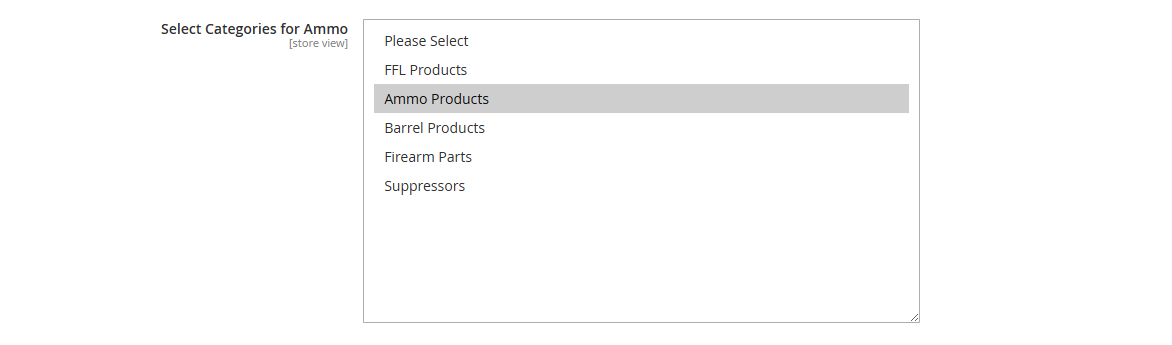
- Select Categories for Ammo
This configuration allows you to map specific categories to the FFL category: Ammo.
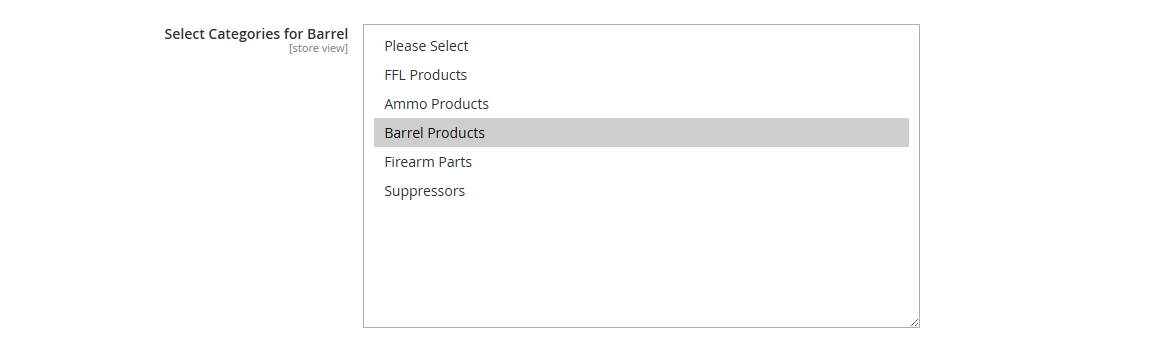
- Select Categories for Barrel
This configuration allows you to map specific categories to the FFL category: Barrel.
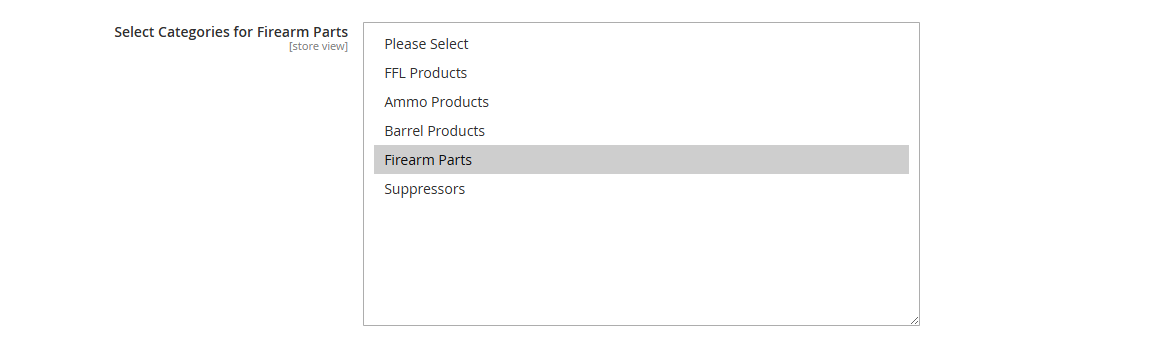
- Select Categories for Firearm Parts
This configuration allows you to map specific categories to the FFL category: Firearm Parts.
Note
These category settings will be overridden if FFL attribute and FFL mapping attribute are configured on the product level.
- Navigate to:
Stores > Configuration > MasterFFL Checkout > FFL State Restriction
FFL State Restriction
Direct Products To Dealer By State

- This feature allows you to route Ammo, Barrels, and Firearm Parts through an FFL dealer for specific regions, based on configurable settings.
Direct Products To Dealer By State - UI Text - Before and After
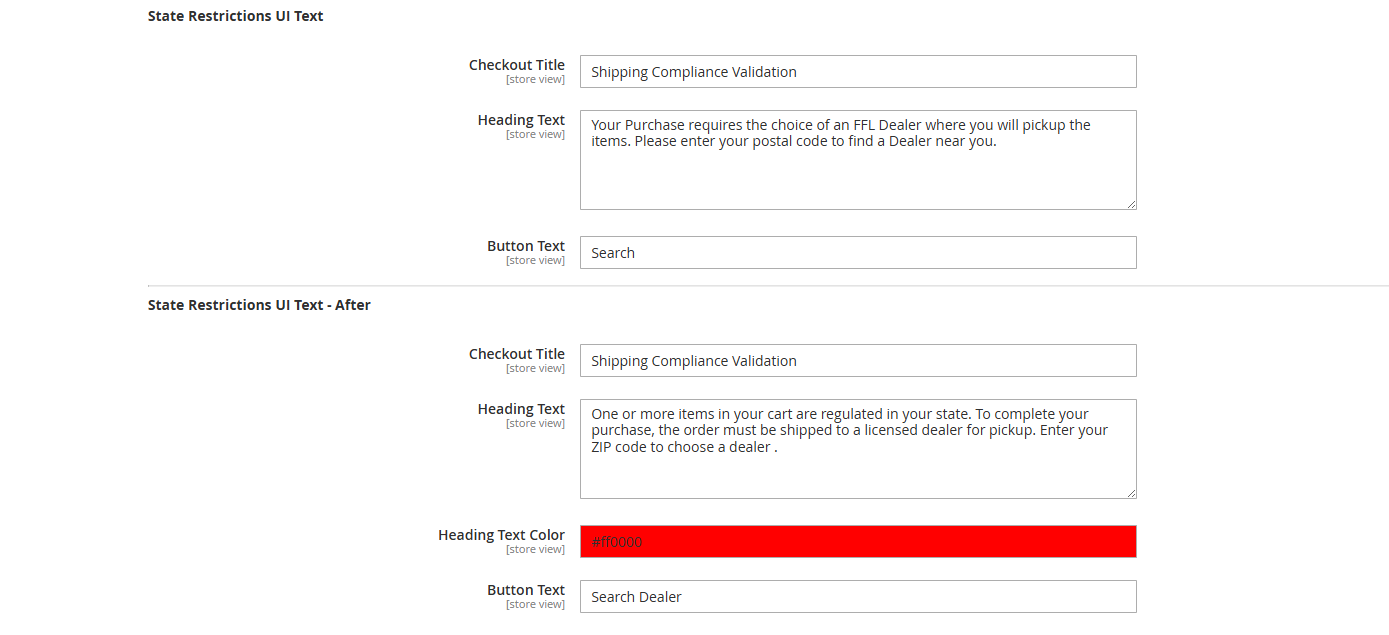
- State Restriction UI Text will be displayed only when the cart contains Ammo, Barrel, or Firearm Parts products (with or without Non-FFL products) and does not contain Handgun, Long Gun, Other Firearms, or Suppressor (NFA) items.
- When the cart includes Ammo / Barrel / Firearm Parts (with or without Non-FFL products), the State Restriction UI Text will be shown on the checkout page for the first time.
- If the customer first enters a ZIP code that does not require FFL dealer checkout and the shipping address is shown, but then updates the ZIP code to one that belongs to a restricted state, the State Restriction UI Text After content will be displayed on the checkout UI.
Enable State Restriction

- Yes: Activates the restriction system.
- No: Disables state-based restrictions.
- Purpose: Turns on or off the restriction logic during FFL checkout.
Restricted States
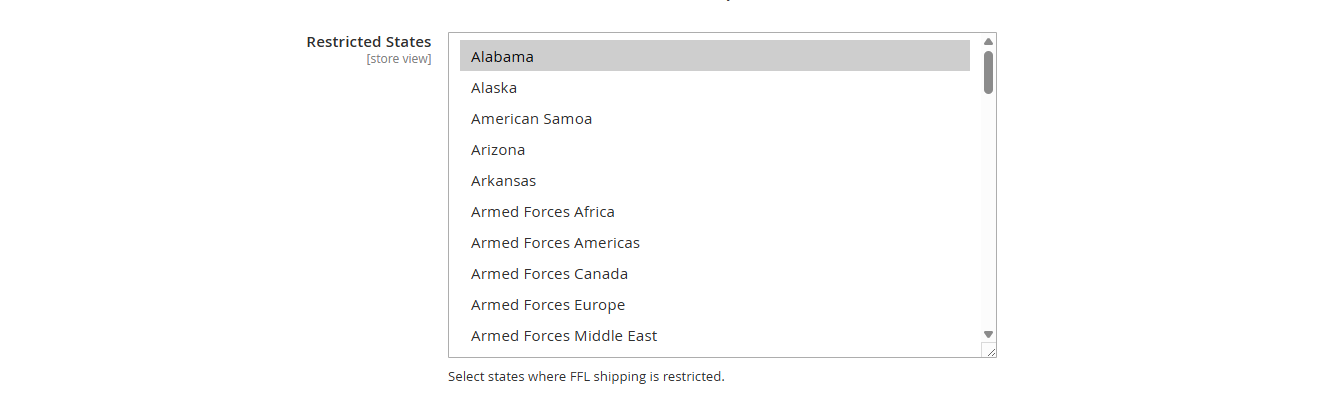
- Purpose: Select the U.S. states or regions where FFL shipping is not allowed.
State Restriction Message

- Purpose: Displays this message to users trying to checkout with an FFL item shipped to a restricted state.
- Navigate to:
Stores > Configuration > MasterFFL Checkout > Advanced Settings
Advanced Settings
Order Status Mapping

- Allows order status mapping, enabling orders to be sent to FFL360 based on the selected status.
Customer Groups Settings
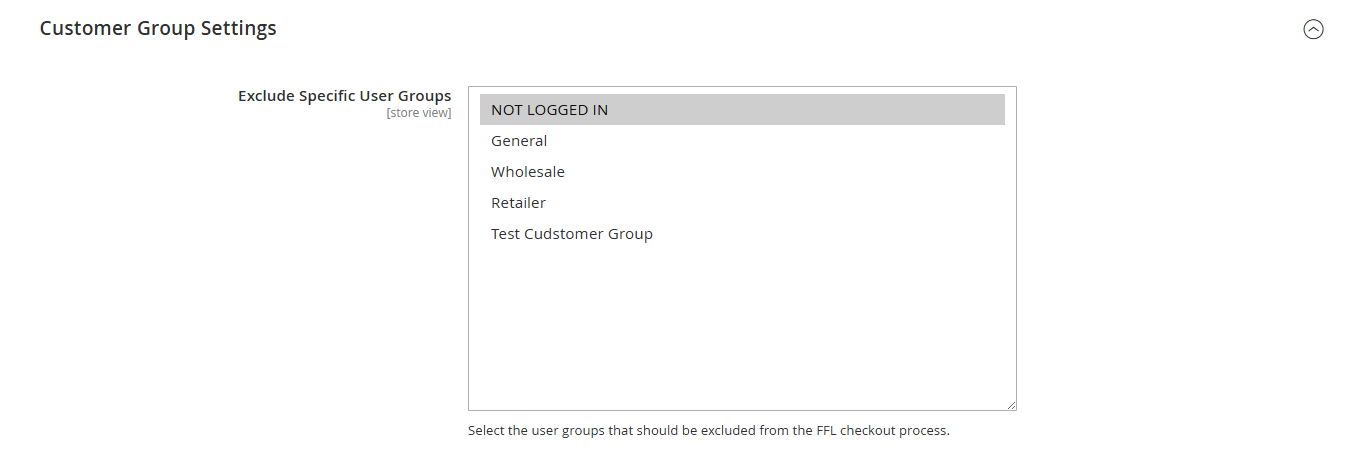
- Exclude User Groups
Select user groups (e.g., Administrator, Editor) that should bypass the FFL dealer selection process during checkout.
FFL Select UI Color

This section allows you to customize the appearance of the FFL Dealer selection UI.
- Header Color: Applied to the header/title section of the FFL selection modal or UI block.
- Button Color: Applied to the Select buttons within the FFL UI.
FFL Checkout UI Text
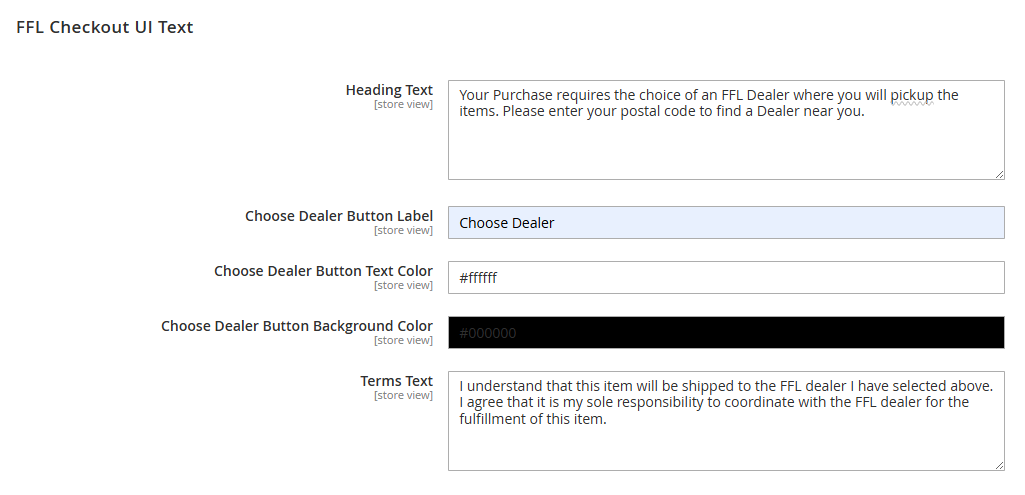
FFL Checkout UI Text Configuration allows you to customize the text and button styles displayed during the firearm checkout process, ensuring a seamless customer experience.
- Heading Text: Message displayed at the top of the FFL selection section to guide users through selecting a dealer.
- Choose Dealer Button Label: The text shown on the button customers click to select their FFL dealer.
- Choose Dealer Button Text Color: Sets the color of the text inside the "Choose Dealer" button for better visibility or branding.
- Choose Dealer Button Background Color: Defines the background color of the "Choose Dealer" button to match store design.
- Terms Text: Legal or informational message confirming the customer’s understanding and responsibility regarding FFL shipment and coordination.
- Navigate to:
Stores > Configuration > MasterFFL Checkout > Developer Settings
Developer Settings
FFL Address Cleanup Cron Settings

Overview
During the multishipping checkout flow, when a customer selects an FFL (Federal Firearms License) dealer, the dealer’s address may be temporarily added to the customer’s address book.
However, if the customer abandons the checkout process or navigates away (e.g., to the homepage), this FFL address can remain saved in their account, even though it shouldn't.
Purpose
The FFL Address Cleanup Cron Settings feature allows Magento administrators to schedule an automated cleanup task.
This cron job regularly checks for and removes any FFL dealer addresses that were incorrectly saved during an incomplete checkout process.
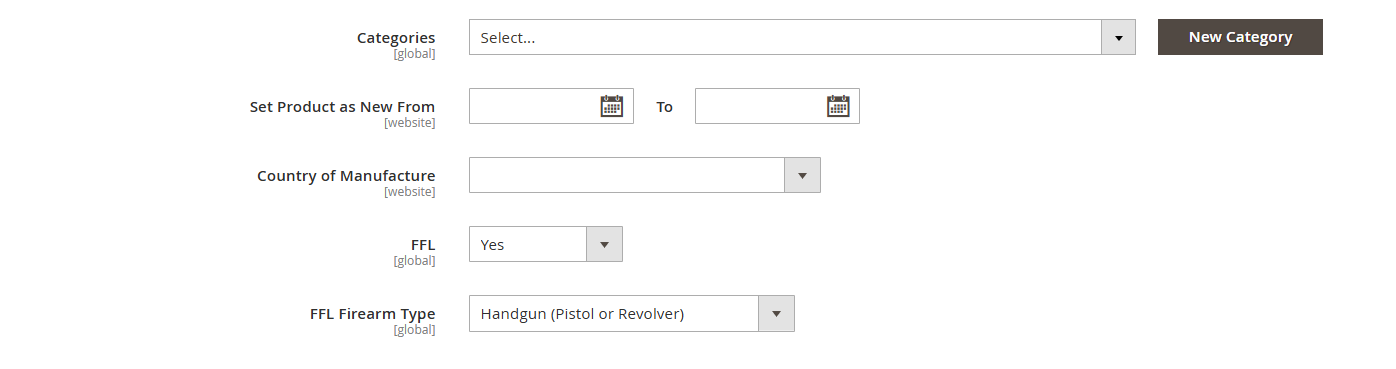
Product Attribute Settings Required
-
FFL
Indicates whether the item requires a Federal Firearms License (FFL). -
FFL Firearm Type
Attribute to select the firearm type for the product.
Frontend Checkout View
FFL Dealer UI on Normal Checkout
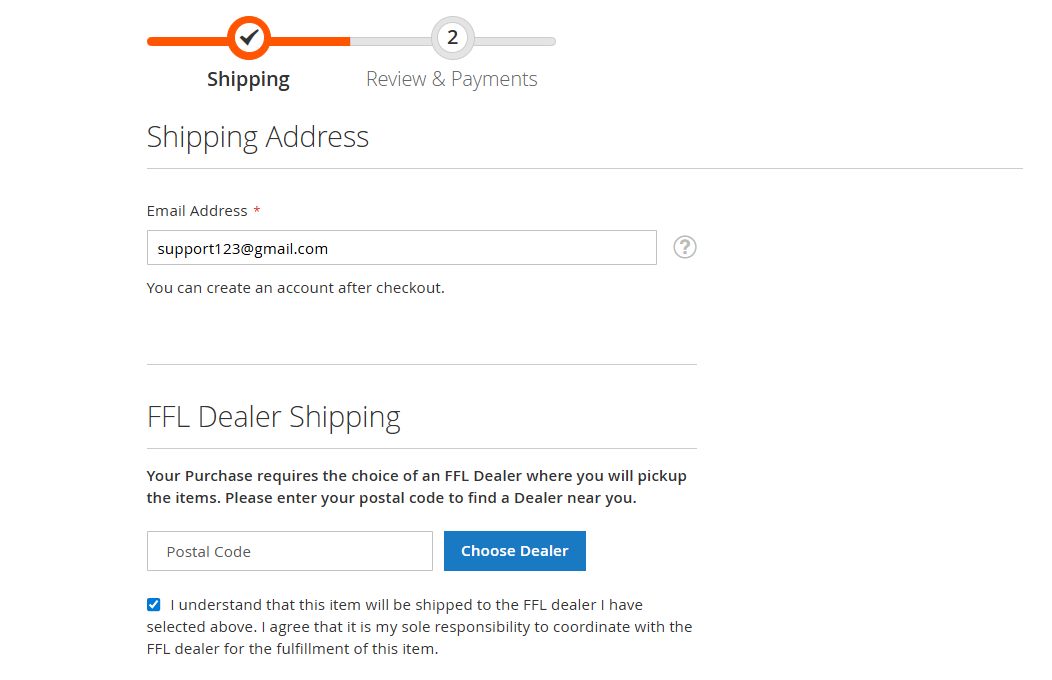
- During checkout, the customer will enter the postal code.
- A list of available FFL dealers will be displayed for selection.
FFL Dealer Selection UI
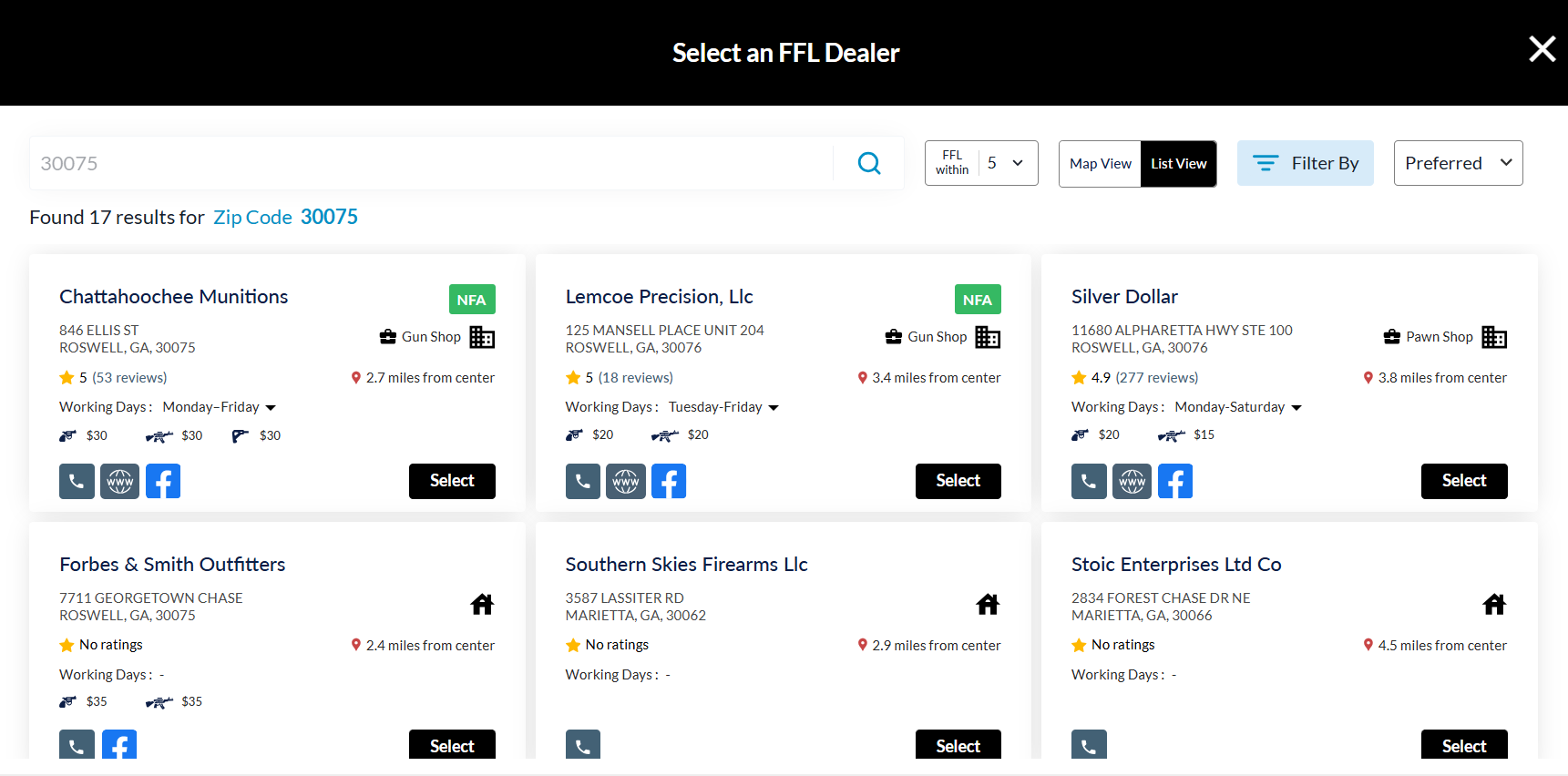
- Customers can choose the dealer near them and proceed to checkout.
Selected Dealer information
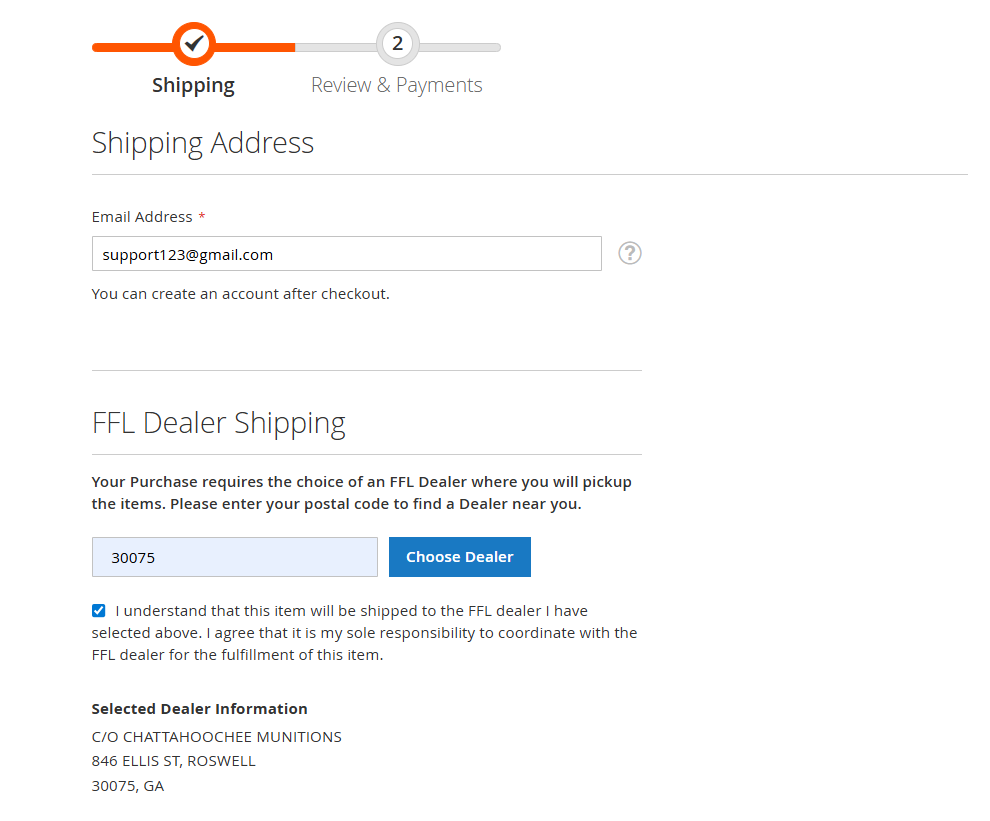
- Once selected, the dealer’s information will automatically appear on the checkout page.
Ammo / Barrels / Firearm Part only in cart
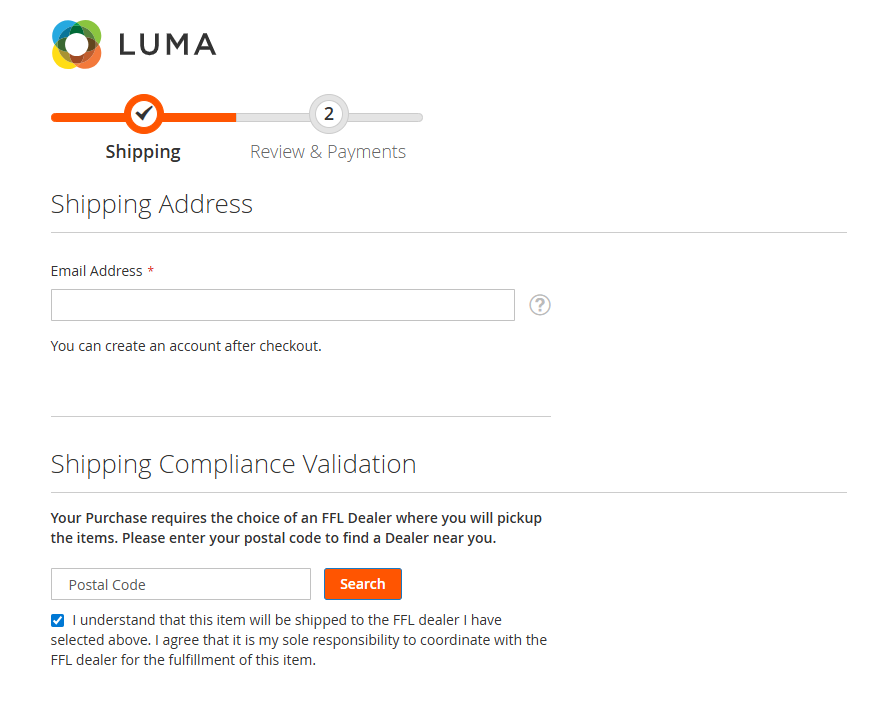
- When the cart contains Ammo, Barrels, or Firearm Parts (with or without Non-FFL items) and does not contain Handgun, Long Gun, Other Firearms, or Suppressor (NFA) items, the checkout UI will appear as described above.
- The checkout UI content is fully configurable, as outlined earlier. Based on the ZIP code entered:
- If the ZIP code belongs to a restricted state, the system will open the FFL dealer selection popup.
- If the ZIP code does not belong to a restricted state, the system will display the default shipping address form.
- If the customer re-enters a restricted ZIP code in the shipping address, the checkout UI will be displayed with the State Restriction UI Text – After content, as shown below.
- The checkout UI content is fully configurable, as outlined earlier. Based on the ZIP code entered:
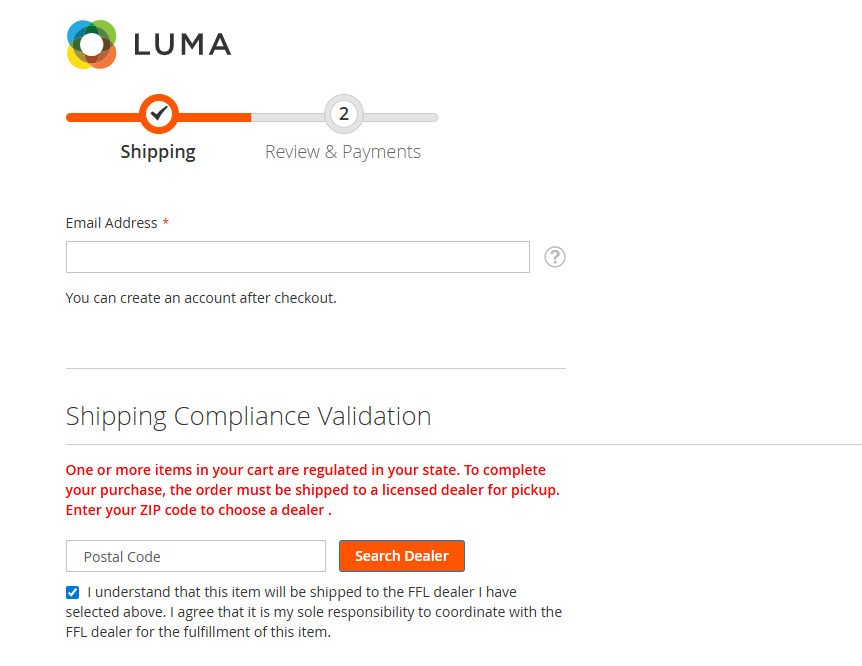
B2B Flow enabled - Checkout UI
When the B2B flow is enabled, the checkout displays tabs that allow the user to either enter a ZIP code or select “I AM AN FFL” to proceed.
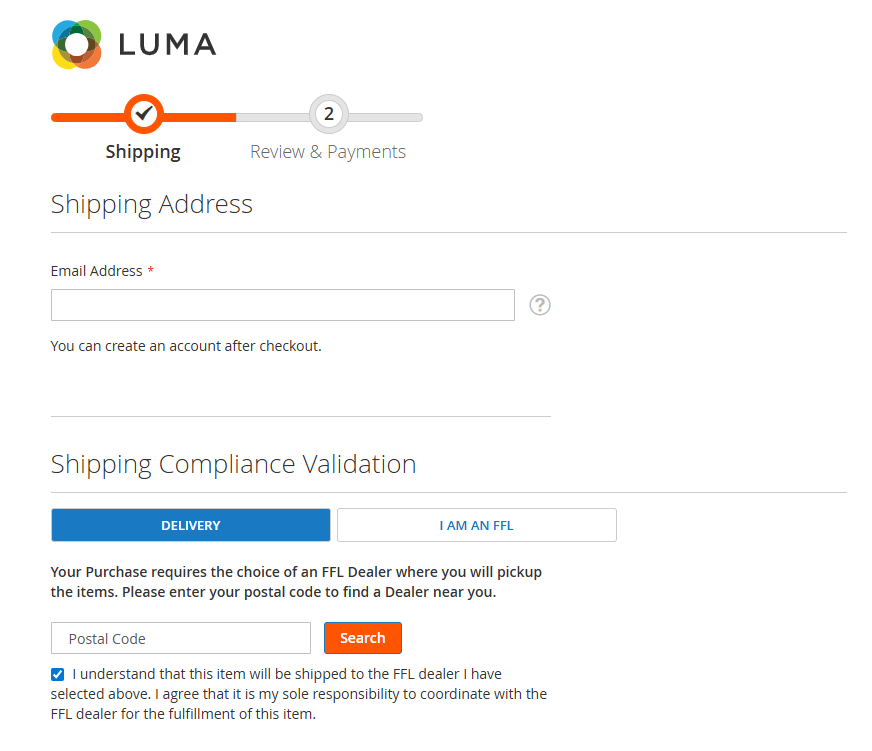
B2B Flow enabled - I AM AN FFL TAB
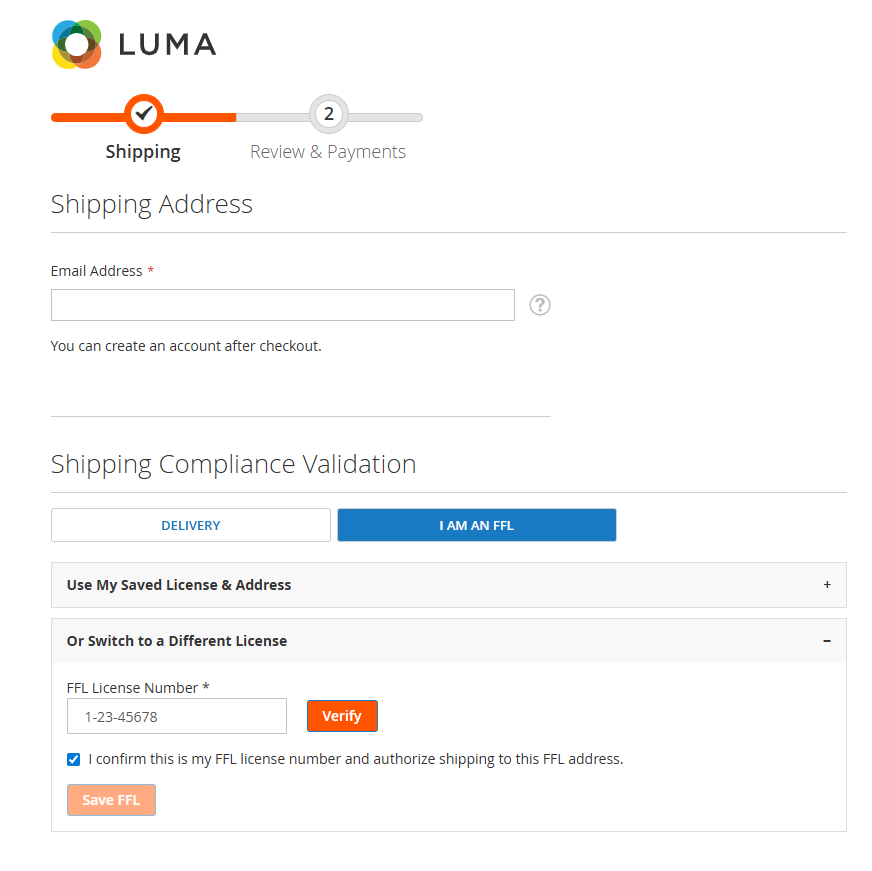
- This allows users to enter their FFL license number (full or abbreviated). If the license number is valid, the system will display the dealer address, allowing the user to select it and proceed with placing the order.
FFL Dealer UI for Multishipping Checkout
The FFL Checkout also supports multishipping, where it separates FFL and non-FFL products.
For FFL products, the system displays the FFL Dealer UI, allowing customers to select a dealer before proceeding with checkout.
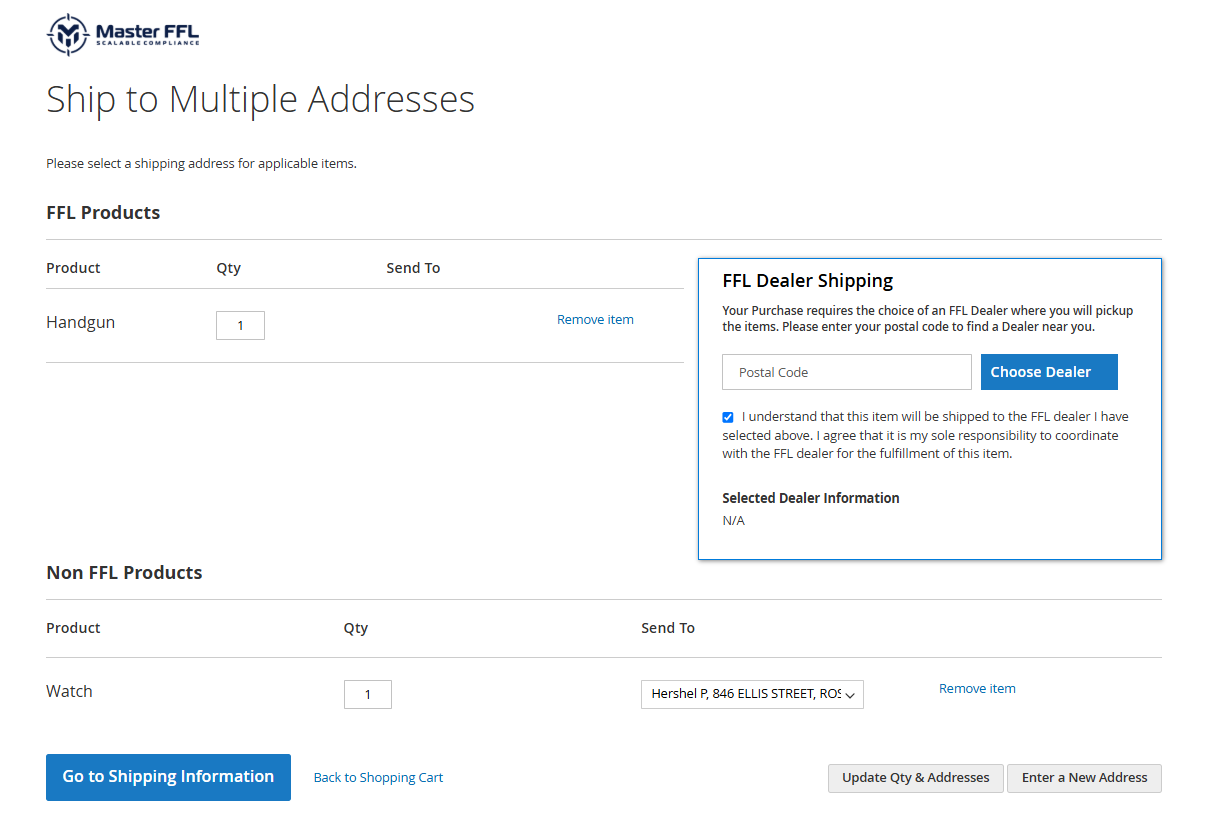
FFL Dealer Selection UI
- Customers can choose the dealer near them and proceed to checkout.
Selected Dealer information
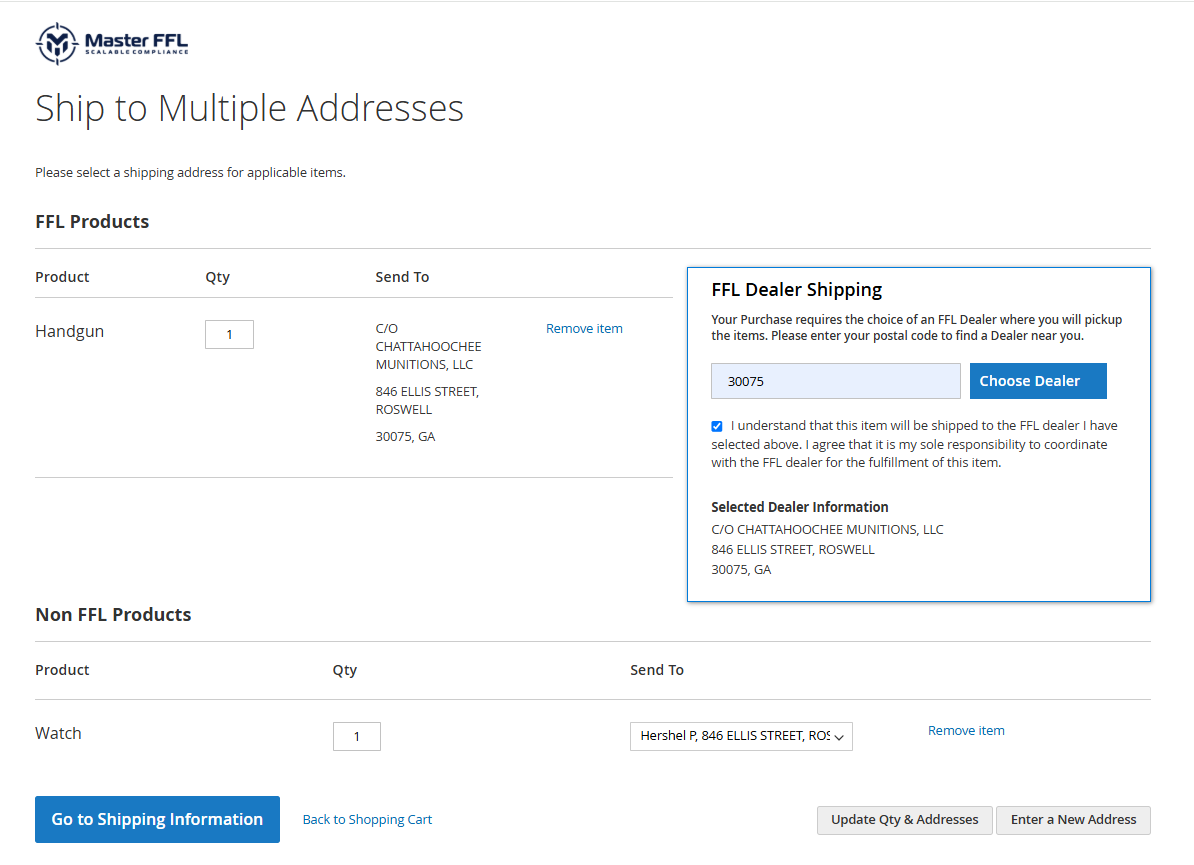
- Once selected, the dealer’s information will automatically appear on the checkout page.
Ammo / Barrels / Firearm Part only in cart
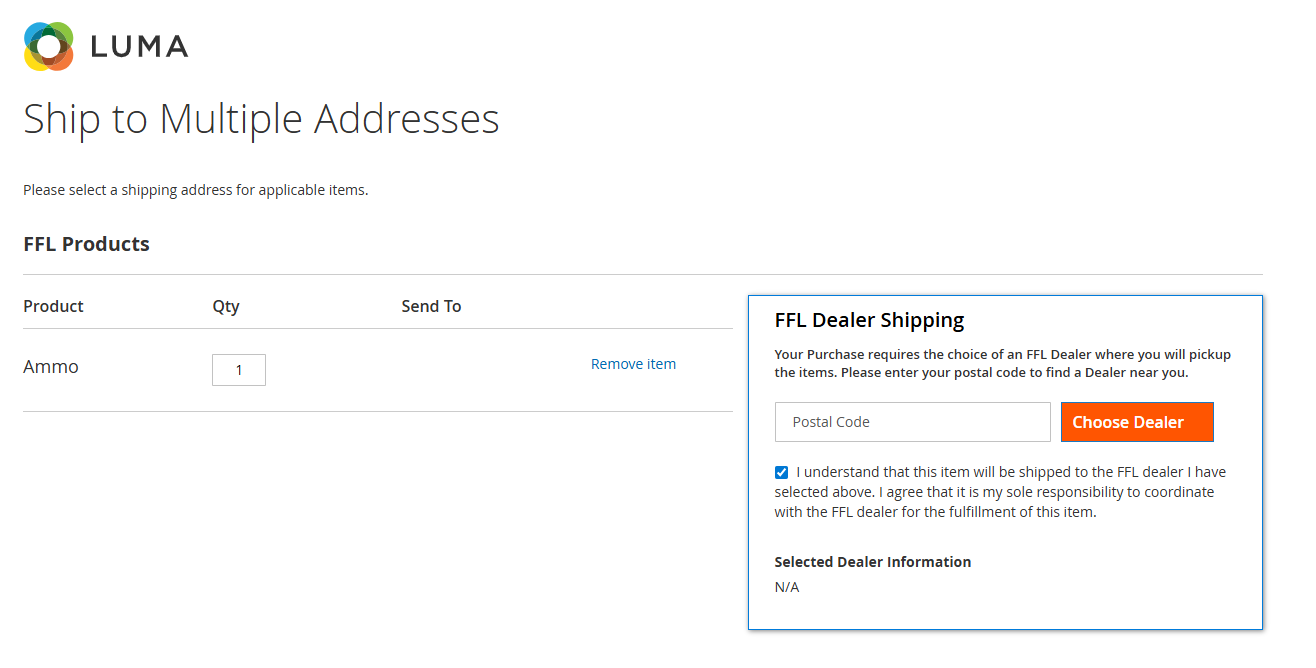
- When the cart contains Ammo, Barrels, or Firearm Parts (with or without Non-FFL items) and does not contain Handgun, Long Gun, Other Firearms, or Suppressor (NFA) items, the checkout UI will appear as described above.
- The checkout UI content is fully configurable, as outlined earlier. Based on the ZIP code entered:
- If the ZIP code belongs to a restricted state, the system will open the FFL dealer selection popup.
- If the ZIP code does not belong to a restricted state, the system will display the default shipping address form.
- If the customer re-enters a restricted ZIP code in the shipping address, the checkout UI will be displayed with the State Restriction UI Text – After content, as shown below.
- The checkout UI content is fully configurable, as outlined earlier. Based on the ZIP code entered:
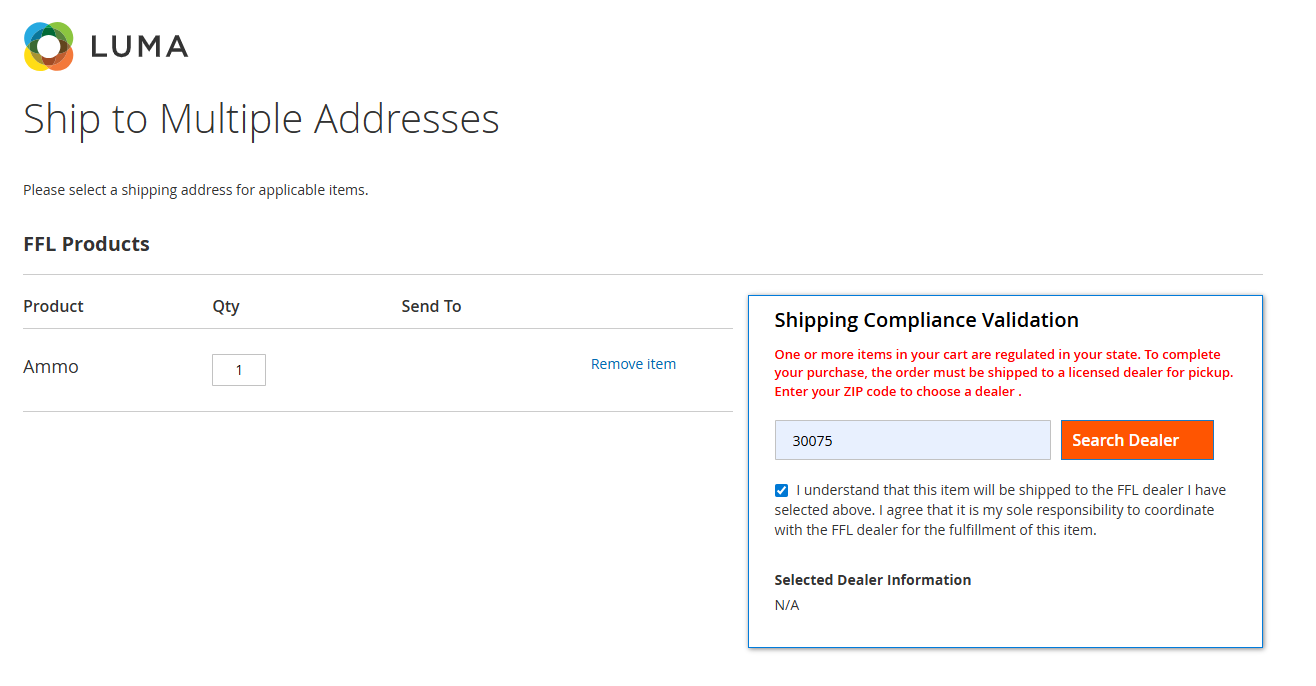
B2B Flow enabled - Multishipping Checkout UI
When the B2B flow is enabled, the checkout displays tabs that allow the user to either enter a ZIP code or select “I AM AN FFL” to proceed.
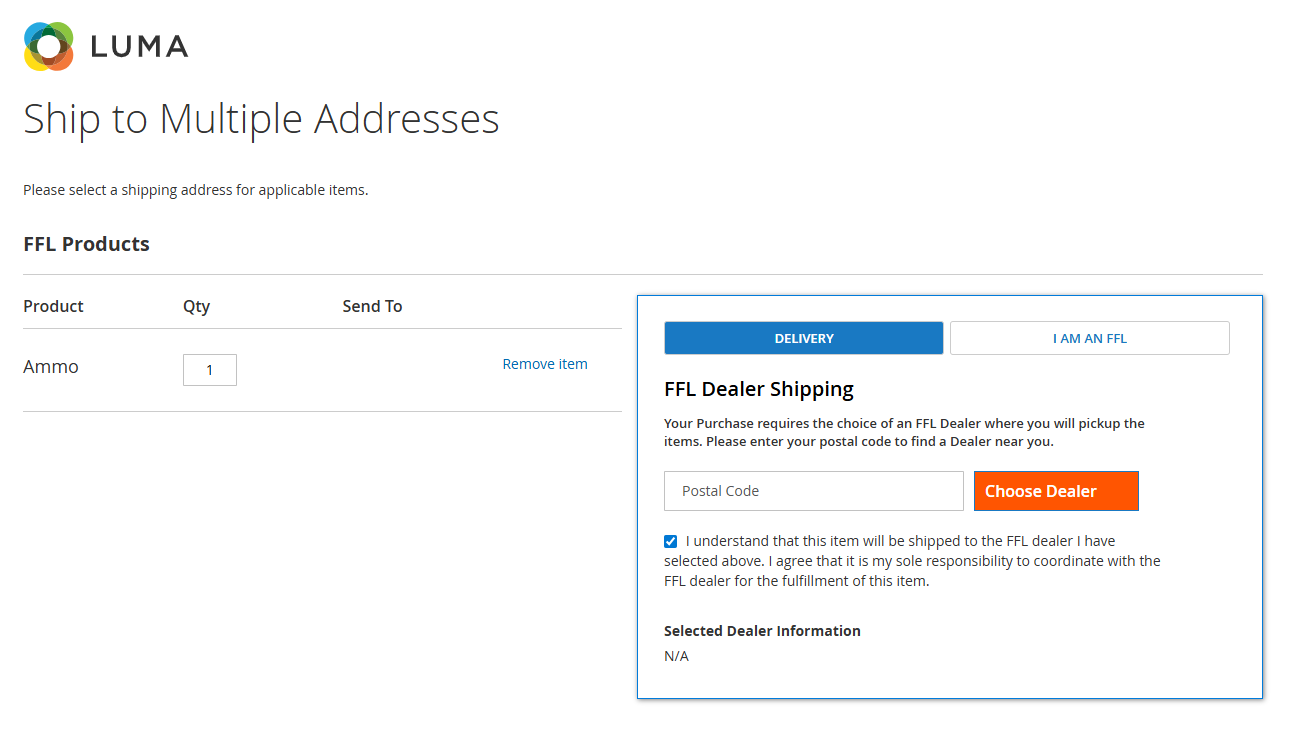
B2B Flow enabled - I AM AN FFL TAB
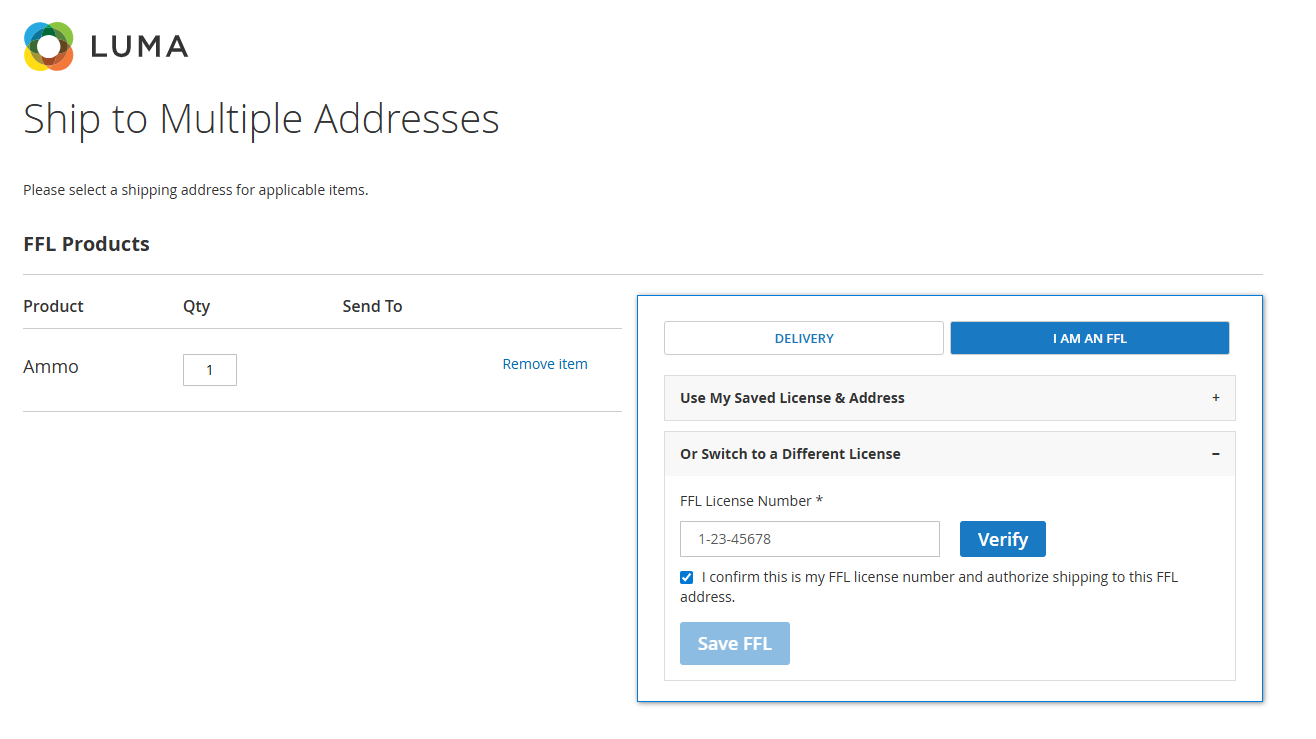
- This allows users to enter their FFL license number (full or abbreviated). If the license number is valid, the system will display the dealer address, allowing the user to select it and proceed with placing the order.
Admin Order Flow - FFL Checkout UI
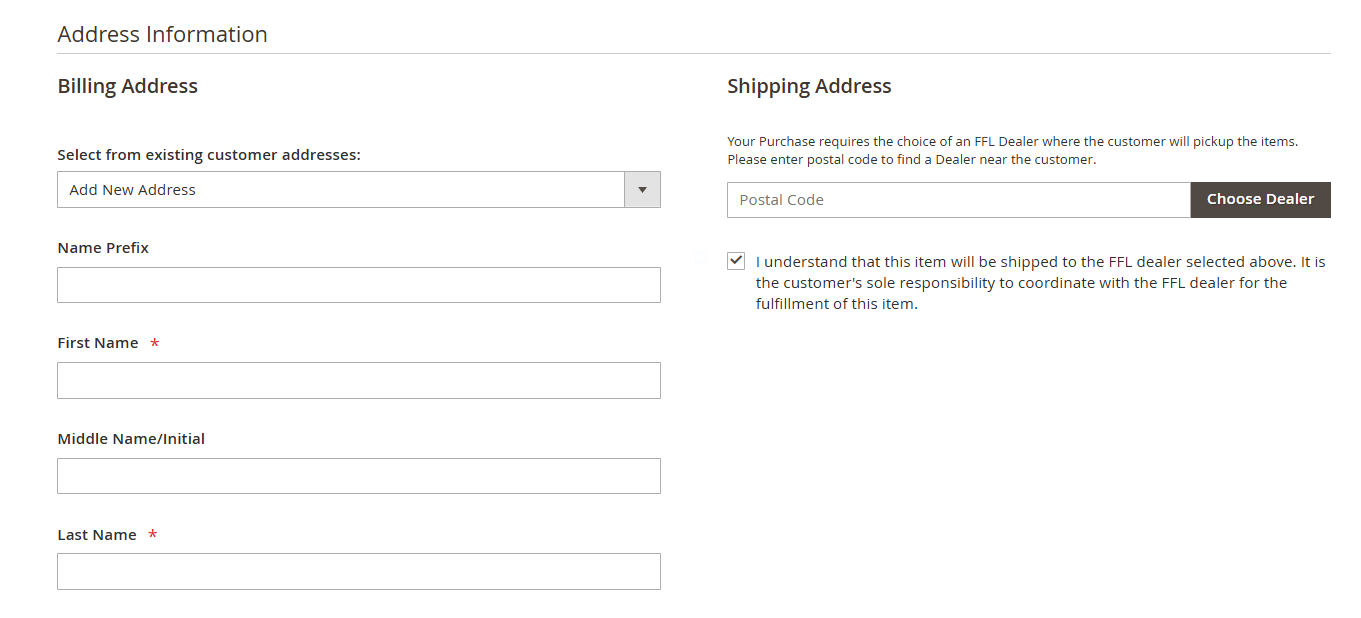
- The FFL dealer selection feature is available in the Magento Admin interface.
- Administrators can select an FFL dealer when placing orders that include FFL products.
- Once the order is placed, it will be properly synced with the FFL360 system, ensuring accurate dealer association and seamless order processing.
FFL Dealer Selection UI
- Customers can choose the dealer near them and proceed to checkout.
Selected Dealer information
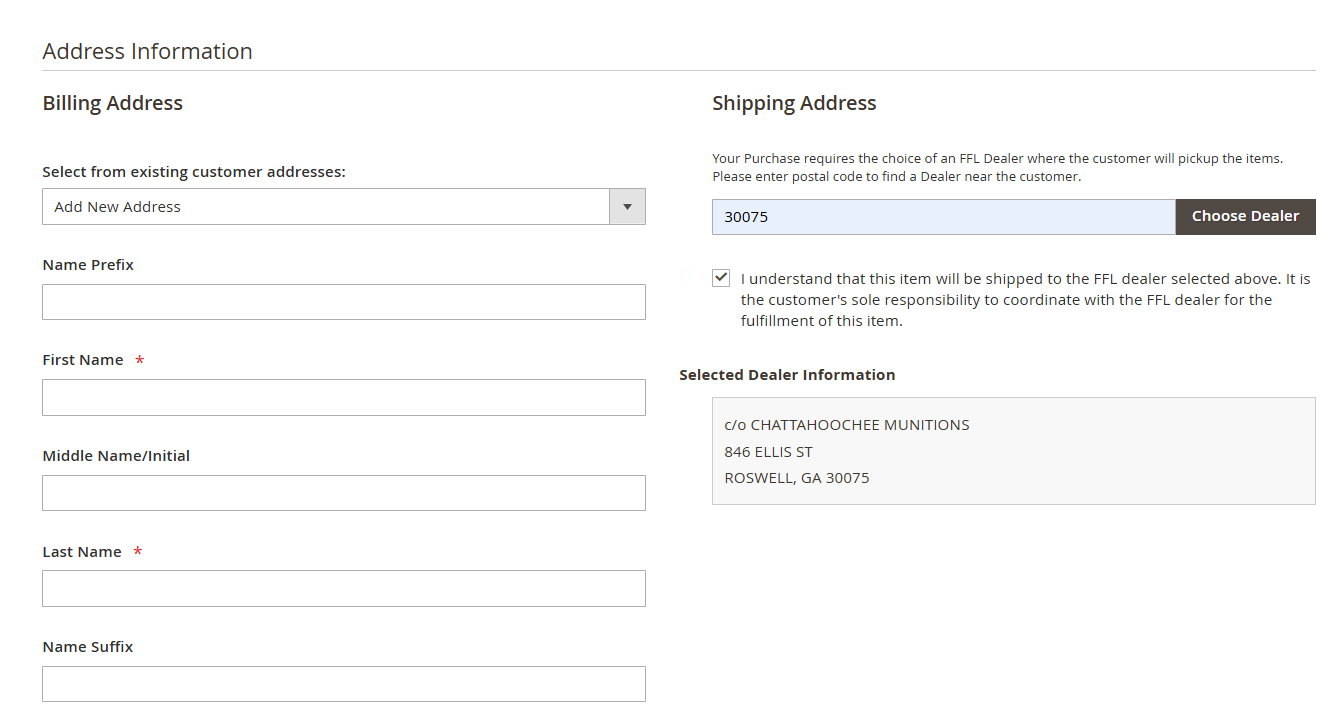
Ammo / Barrels / Firearm Part only in cart
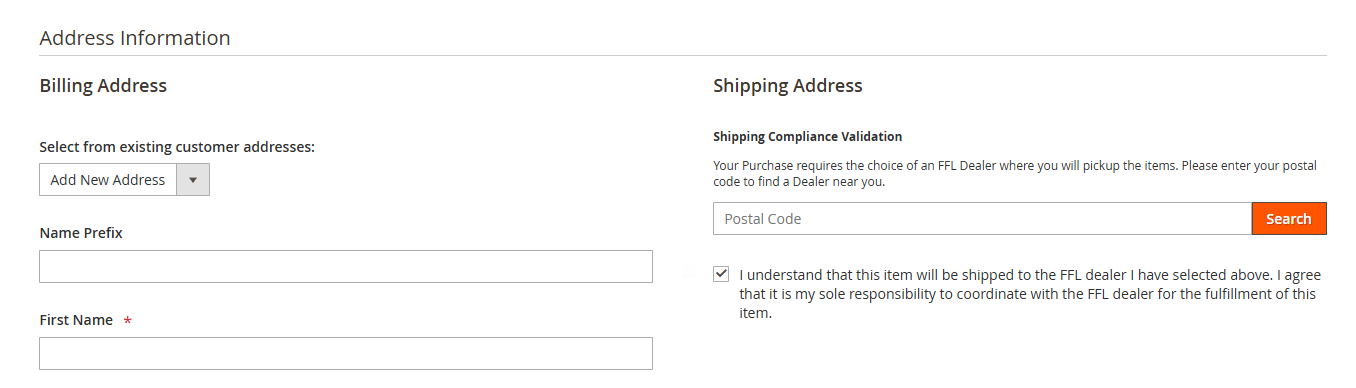
- When the cart contains Ammo, Barrels, or Firearm Parts (with or without Non-FFL items) and does not contain Handgun, Long Gun, Other Firearms, or Suppressor (NFA) items, the checkout UI will appear as described above.
- The checkout UI content is fully configurable, as outlined earlier. Based on the ZIP code entered:
- If the ZIP code belongs to a restricted state, the system will open the FFL dealer selection popup.
- If the ZIP code does not belong to a restricted state, the system will display the default shipping address form.
- If the customer re-enters a restricted ZIP code in the shipping address, the checkout UI will be displayed with the State Restriction UI Text – After content, as shown below.
- The checkout UI content is fully configurable, as outlined earlier. Based on the ZIP code entered:
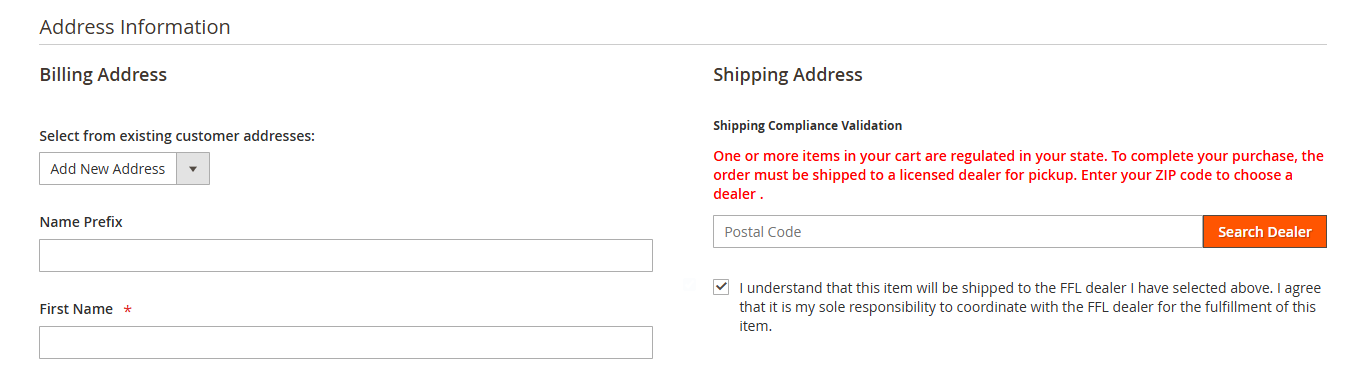
B2B Flow enabled - Admin UI
When the B2B flow is enabled, the checkout displays tabs that allow the user to either enter a ZIP code or select “I AM AN FFL” to proceed.
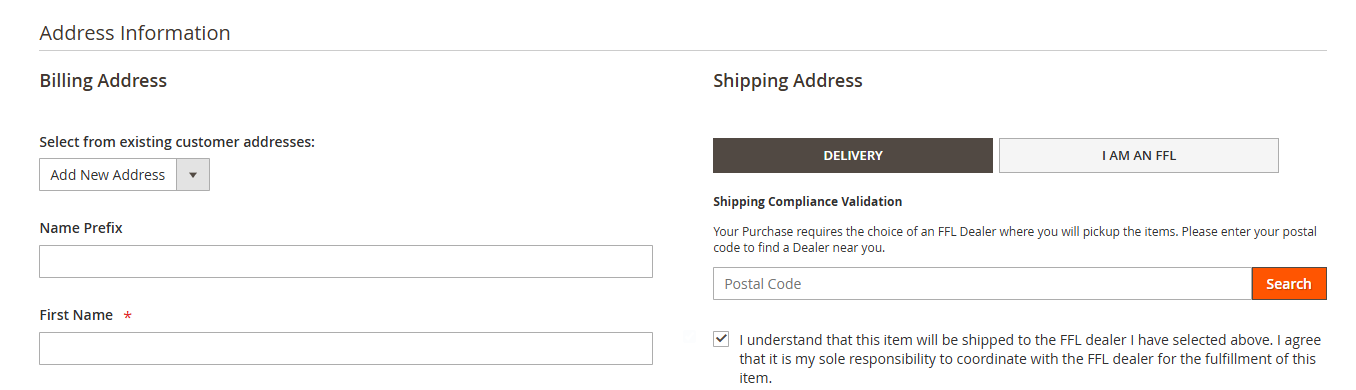
B2B Flow enabled - I AM AN FFL TAB
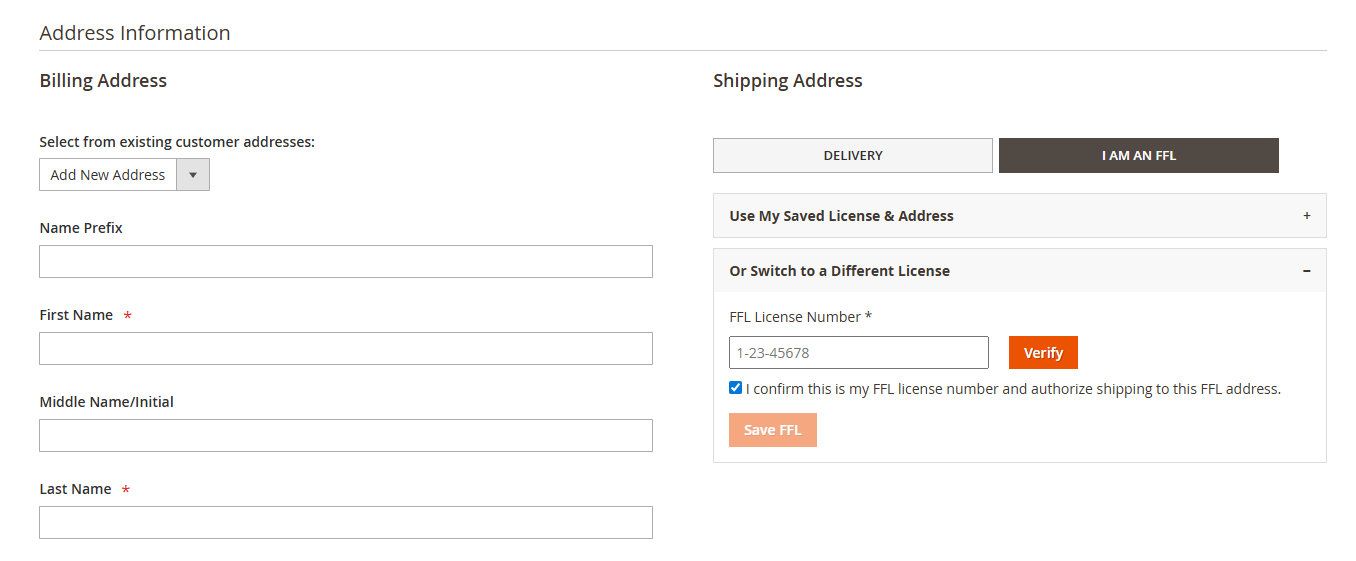
- This allows users to enter their FFL license number (full or abbreviated). If the license number is valid, the system will display the dealer address, allowing the user to select it and proceed with placing the order.
FFL Master Proof in Order view
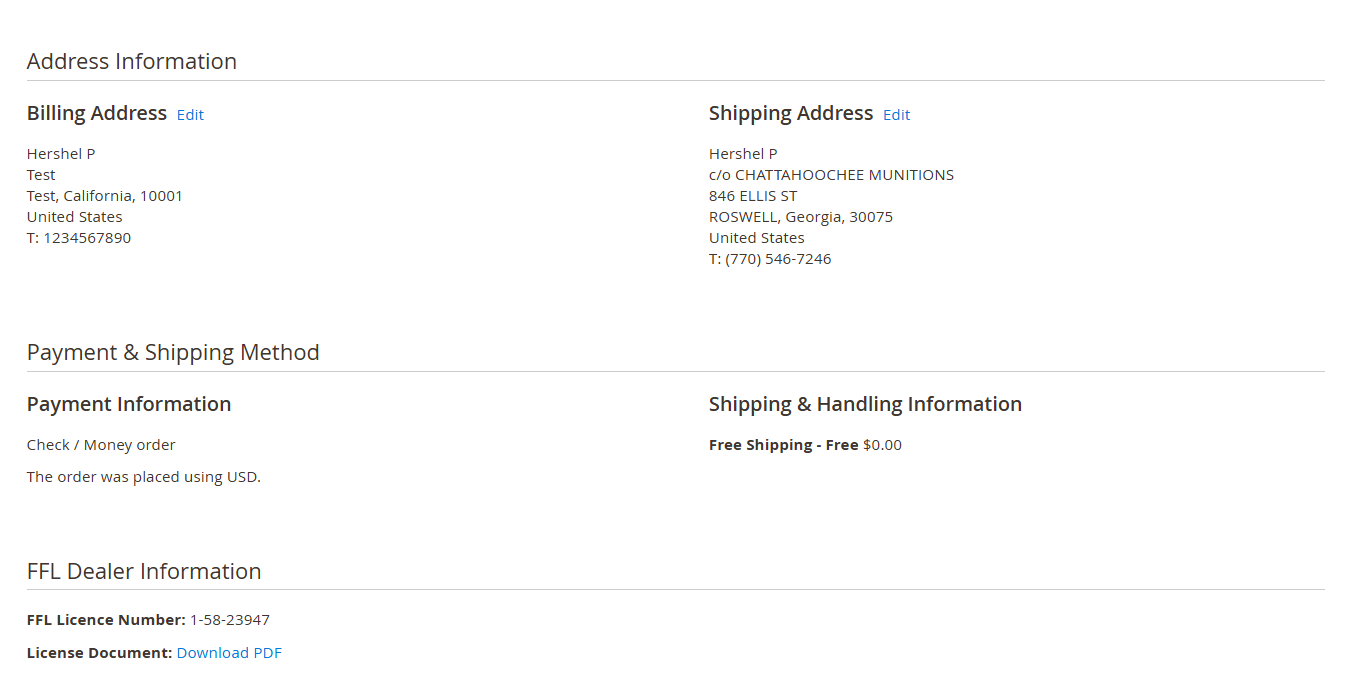
- Once a customer selects an FFL dealer during checkout, the dealer’s details are saved with the order.
As an administrator, you can easily view this information in the Order Details page inside the admin panel. - From the order view, administrators can download the Transfer Proof document directly using the provided link.
FFL Master Proof
When the transferURL is ready from the FFL360 system, the following API is triggered to update the shipping address, FFL License Number, and Master Transfer Proof URL based on the selected dealer's information.
API Endpoint
- URL:
{Base URL}/rest/V1/orders/{Order ID}/shipping-address - Method:
POST
Request Payload Example
{
  "address": {
    "street": ["1234 Liberty Ave"],
    "city": "Los Angeles",
    "region": "California",
    "postcode": "90001",
    "company": "Master FFL"
  },
  "statusHistory": {
    "comment": "https://documents.masterffl.com/ffl-transfer-proofs/597f1ba7-0a40-4a4e-ade9-69343d01b7d2/28328/849e8da2-a5f3-4a5b-927f-95a05ba0596e/transferProof_XXX.pdf",
    "is_customer_notified": 0,
    "is_visible_on_front": 0
  },
  "dealerId": "1234567890"
}
Functionality
- This API updates the order's shipping address with the selected FFL dealer's address.
- The FFL License Number is updated as part of the dealer data.
- The Master Transfer Proof is also included in these updates.
Dealer Reassign
If the dealer is changed after the order is placed from FFL360, this same API is triggered again.
It updates the order with the new dealer's information:
- Shipping address
- Transfer URL
- FFL License Number
This ensures the order details always reflect the latest selected dealer.
Support Required
For assistance, contact our dedicated support team:
- Email: [email protected]
- Phone: (770) 765-1982
-
- Phone: (770) 765-1982
- Phone: (770) 765-1982
Updated 3 months ago