
Grant Storefront Access
1. Grant WooCommerce Access for Plugin Installation & Configuration
Create a Shopware administrator account for the MasterFFL team so we can install the plugin, configure checkout settings, and complete onboarding.
Steps to Provision Access
1. Log in to your Shopware Administration.
Open your Shopware Admin URL and sign in using an administrator account.
Example
https://yourstore.com/admin
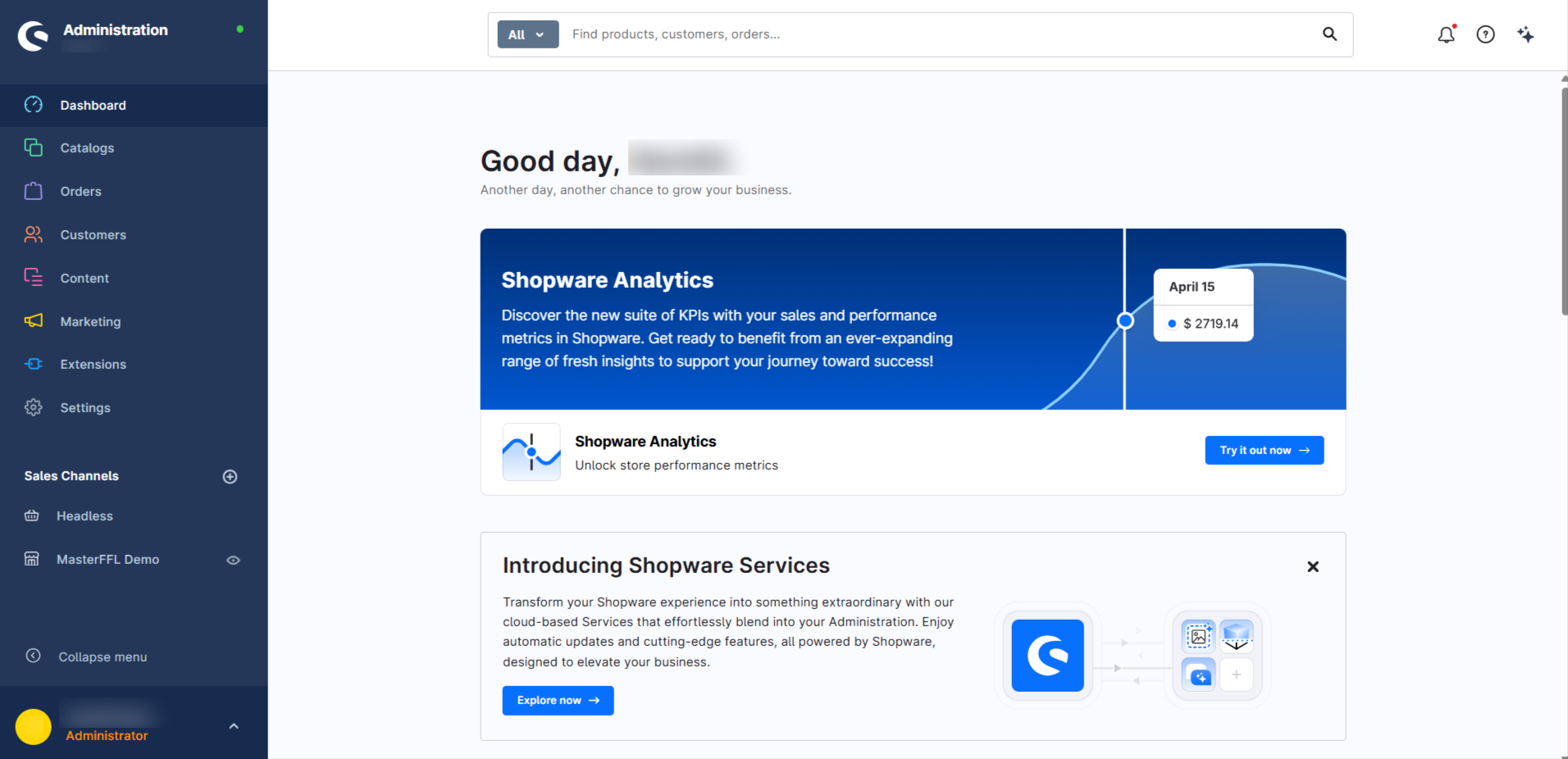
2. Navigate to Users & Permissions
From the left navigation menu, go to:
Settings → System → Users & Permissions
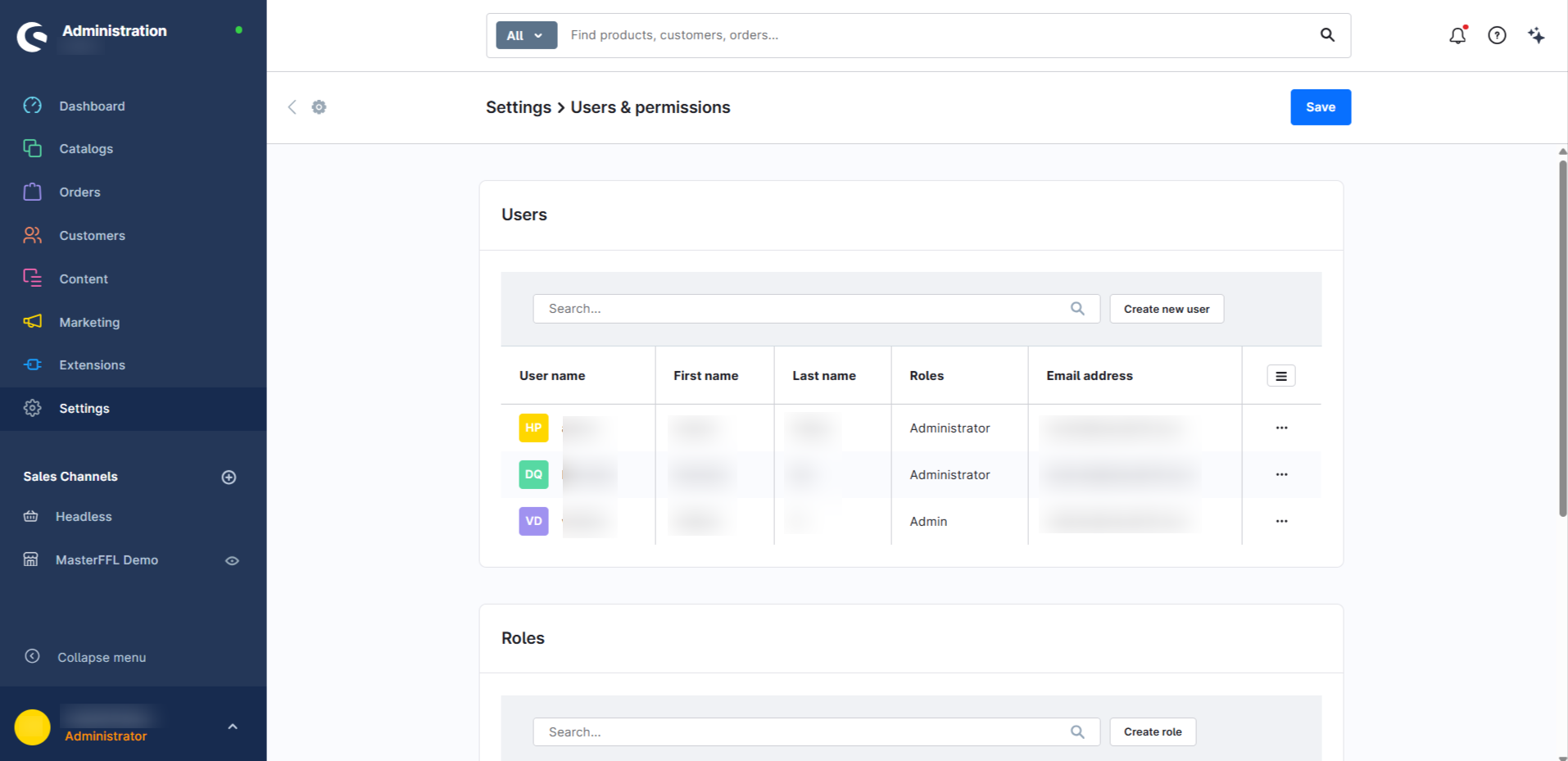
3. Create a New User
Click Create User in the upper-right corner.
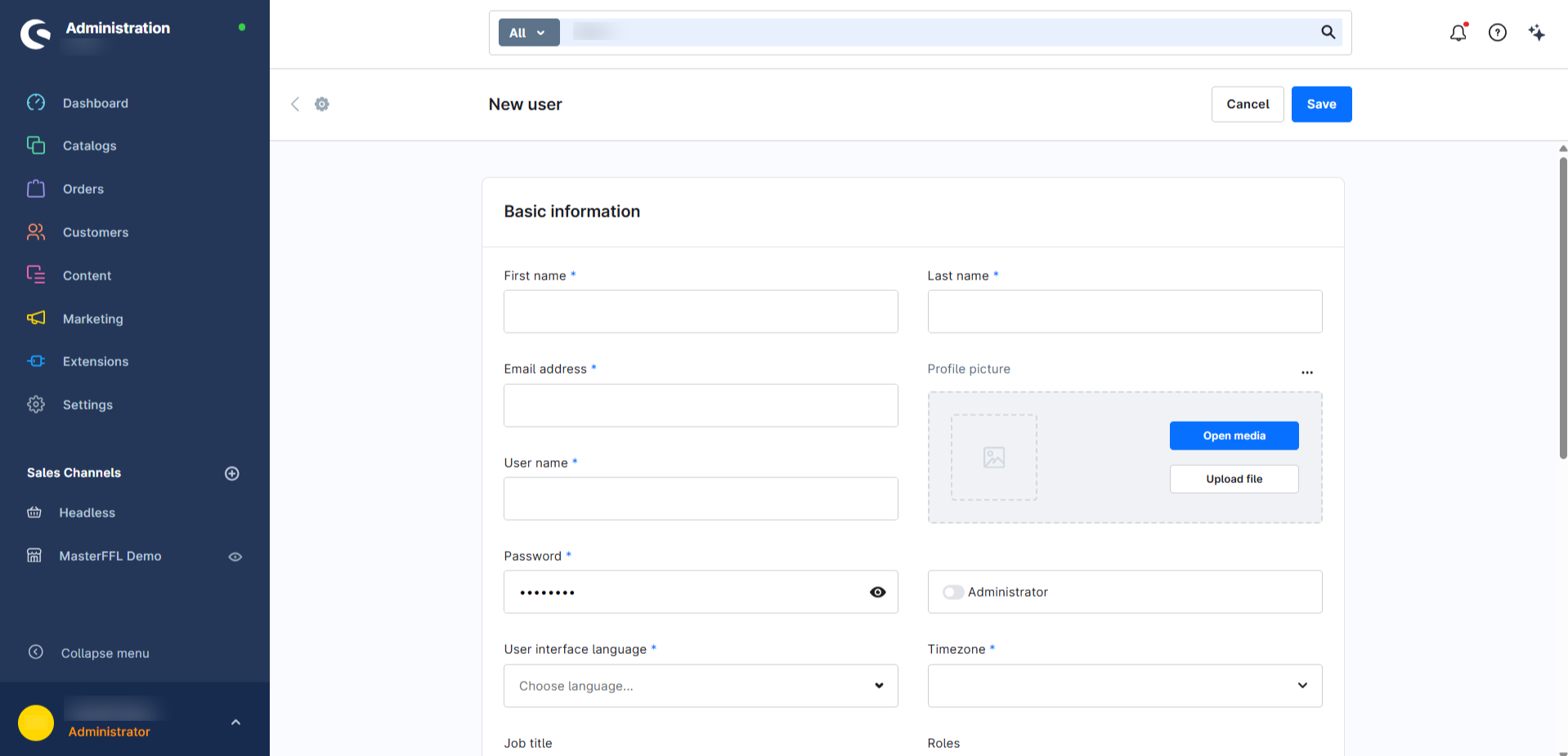
4. Enter the User Details
Create the administrator account using the following information:
| Field | Value |
|---|---|
| First Name | MasterFFL |
| Last Name | Support |
[email protected] | |
| Username | masterffl (if available in your Shopware version) |
| Password | Generate a secure password |
Note: Some Shopware versions use the email address as the login instead of a separate username.
5. Assign Administrator Permissions
Assign the user the Administrator role.
If your Shopware installation uses custom roles, ensure the user has Full Administrator permissions.
The account should have access to:
- Administration
- Plugin Manager
- Extensions
- Settings
- System Configuration
- Users & Permissions
- Sales Channels
- Orders
- Customers
- Products
6. Save the User
Click Save to create the administrator account.
7. Share the Credentials Securely
Please provide the following information securely to the MasterFFL team:
| Information | Example |
|---|---|
| Store URL | https://yourstore.com |
| Admin URL | https://yourstore.com/admin |
| Username / Email | masterffl or [email protected] |
| Password | Your generated password |
Important: Do not send credentials over unsecured channels. Use your organization's preferred secure password-sharing method.
Updated 3 months ago