
FastBound Integration Guide
The FastBound connection allows you to automatically create pending dispositions in your electronic bound book as soon as a Master FFL transfer is completed.
Enabling the FastBound Connection
To activate this feature, follow these steps:
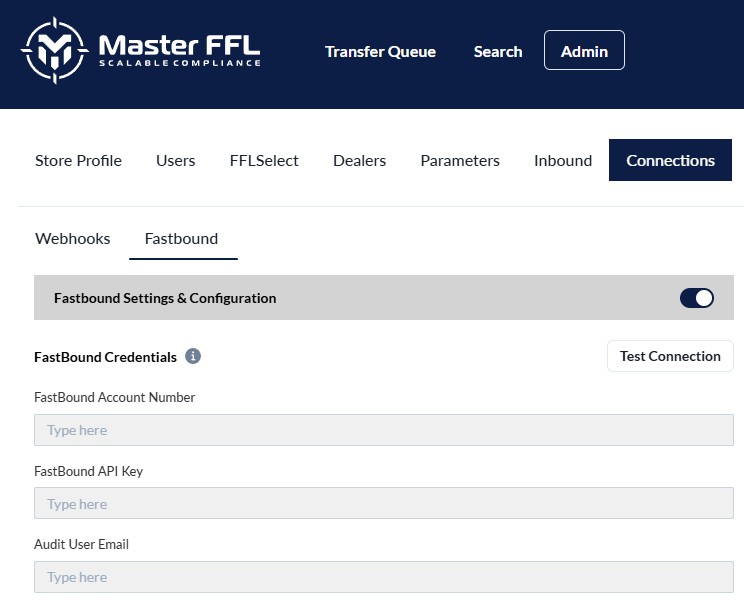
- Navigate to Admin > Connections > FastBound.
- Toggle the connection switch to On.
- Enter your FastBound API credentials and save.
Subscription AvailabilityThe FastBound connector is not available on all Master FFL plans. If you do not see this option in your dashboard, please reach out to [email protected] to discuss upgrading your account.
Configuring Item Lookup Modes
To automatically generate a disposition, Master FFL must match the product sold to the corresponding item record in FastBound. The connector can look up items using three distinct modes, depending on the data available in your e-commerce platform or passed via the Master FFL Transfers API.
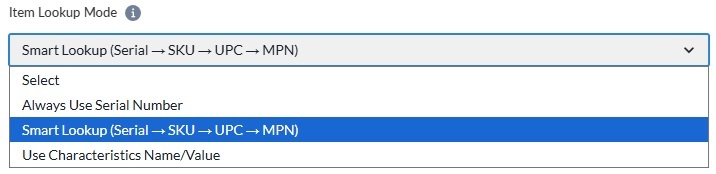
- Always Use Serial Number: Requires the specific serial number of the item to be passed directly within the transfer data.
- Smart Lookup (Recommended): A robust, sequential fallback search. It first searches by Serial Number (if provided), then falls back to SKU, then UPC, and finally MPN.
- Use Characteristics Name/Value: Pulls a custom SKU or UPC directly from your e-commerce platform's custom fields or product attributes.
Best Practice RecommendationFor most online sellers, we recommend maintaining matching SKUs between FastBound and your e-commerce platform, and selecting Smart Lookup as your Item Lookup Mode. This ensures the most resilient matching logic by starting with the most specific identifier and working downward.
Advanced Connector Settings
If Item Lookup Fails
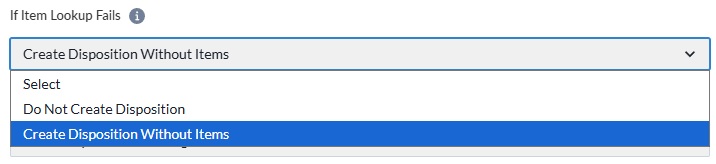
This setting dictates how the system should proceed if an item cannot be found in FastBound, or if the item is found but is unavailable to be added to a disposition.
| Option | Behavior | Best Used For |
|---|---|---|
| Do Not Create Disposition | Skips creating the disposition entirely if any item in the order fails to match. | Sellers utilizing drop-shipping or mixed stocking models. |
| Create Disposition Without Items | Generates the disposition for any successfully matched items and skips the unmatched ones. The FastBound order notes will list the missing items. | Most standard use cases. This offers a safe failure mode, allowing a compliance officer to manually reconcile and add the missing items later via the provided notes. |
Reassignment Behavior
This setting determines how the connector handles scenarios where a completed transfer is later reassigned to a new receiving dealer.
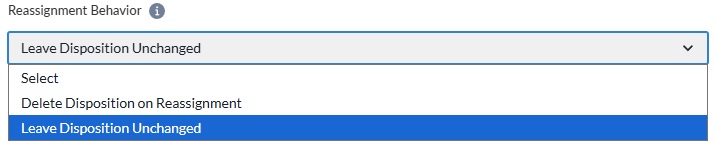
- Delete Disposition on Reassignment: Automatically deletes the pending disposition if the transfer is reassigned.
- Note: This will not delete a completed disposition. If the disposition has already been finalized prior to the transfer reassignment, you must manually revert it in FastBound.
- Leave Disposition Unchanged: Leaves the initial pending disposition and its assigned items intact, and attempts to generate a brand new disposition for the new dealer.
- Note: This is frequently used by dealers who stage orders and prefer to manually unwind pending dispositions.
How the Workflow Works
When a Master FFL transfer status changes to Complete, the automation executes the following background workflow:
[Transfer Completes] ➔ [Lookup Items in FastBound] ➔ [Split into NFA / Non-NFA] ➔ [Create Pending Disposition(s)]
-
Item Matching: The system queries FastBound for the items sold based on your configured Item Lookup Mode (matching a specific serial number or selecting the first available serial number under a matching SKU).
-
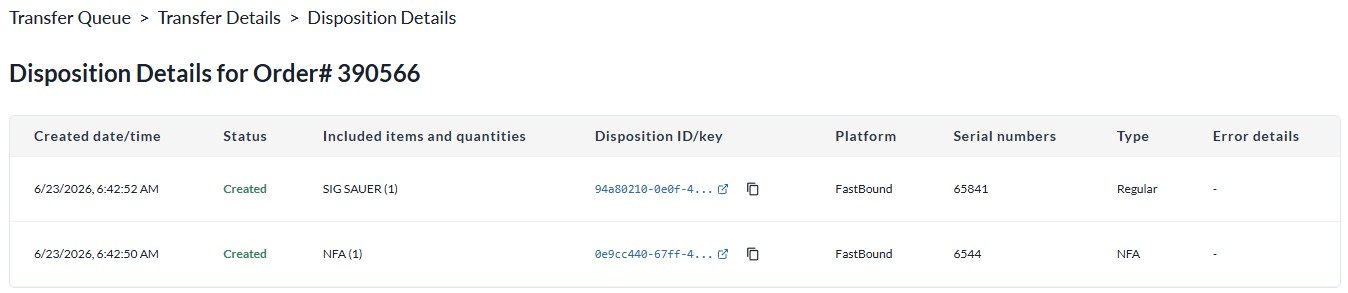
Compliance Splitting: Found items are automatically sorted into two categories: NFA and Non-NFA. If a transfer contains a mix of both types, two separate dispositions will be created to maintain clean compliance boundaries.
-
Logging & Linking: Once generated, the sync status is posted directly to the Transfer Details page.

This includes a direct link to a detailed execution log containing:
- Initial serial numbers selected
- Item names and total quantities
- Direct links to the pending records inside FastBound
- Reassignment Handling: If a transfer is subsequently reassigned to a new dealer and completes a second time, the system re-evaluates your Reassignment Behavior settings and may append a second entry to the disposition log.
Updated 3 months ago